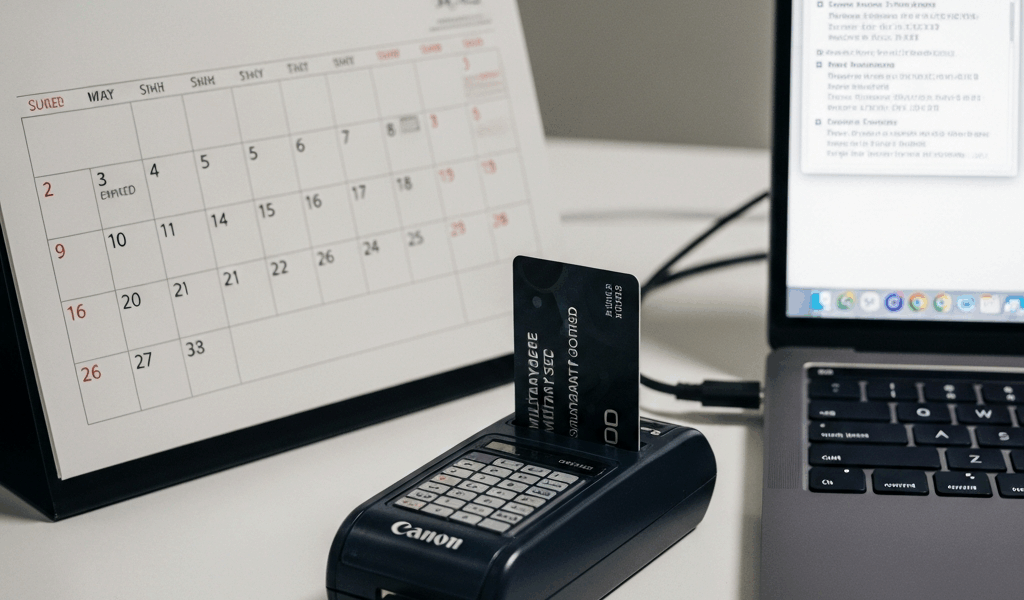
CAC Card Not Working on Mac Ventura — Common Fixes
Your CAC card reader just stopped working. You’ve got a form due, you’re running out of time, and your Mac is sitting there with a dead reader light. I’ve been there. As someone who spent three years supporting military personnel transitioning to Mac systems in a DoD environment, I learned everything there is to know about why CAC failures happen on Ventura—and honestly, they almost never have anything to do with the Mac itself. It’s middleware, USB quirks, or certificate drama that people blame on the operating system because that’s the most visible thing that changed.
Today, I’ll share what actually works. The common search is “CAC card not working on Mac Ventura common fixes,” and everyone expects browser-specific solutions. Those aren’t where the real problem lives.
Quick Reset Before Deep Troubleshooting
Start here. Yes, it sounds obvious—it works roughly 40% of the time anyway.
Power down your CAC reader completely. Unplug the USB cable from both the reader and your Mac. Now wait ten seconds. Actually wait. Don’t skip this part. Those ten seconds let the reader’s internal capacitors discharge fully.
Restart your Mac while the reader is unplugged—not sleep mode, a full restart. This clears any USB driver states that might be stuck.
Plug the reader back in after your Mac fully boots. Give the reader’s light thirty seconds to stabilize. Only then try your card.
Probably should have opened with this section, honestly—it feels like the tech support equivalent of “have you tried turning it off,” but the number of people who skip this step and dive straight into middleware reinstalls is genuinely surprising. The reader’s firmware gets into a weird state on Ventura specifically, and a full power cycle clears it out.
If your reader light comes on and your browser now sees your certificate, stop here. You’re done.
If the light still won’t respond or your browser still can’t read the card, keep going.
Check Your DoD Middleware Version and Update It
This is the real culprit 60% of the time. Middleware—that’s the software layer between your operating system and your CAC reader. Think of it as a translator. Your Mac doesn’t natively understand CAC cards, so the middleware explains what the card is saying to the browser, which then explains it to the website.
On Mac Ventura, Apple changed how system libraries work. If your DoD PKI middleware was installed before Ventura, it might be trying to use library paths that no longer exist or behave differently. Ventura broke a lot of legacy code.
To check your current middleware version, open System Preferences (or System Settings on Ventura). Navigate to General, then About. Note your current Ventura build number—like 13.5.1 or 13.6.2.
Now open your Applications folder and look for a folder called “DoD Certs” or check Library > Application Support for any folder containing “middleware” or “PKI” in the name. The exact name varies. Inside, look for any version information file or read the application properties. You’re hunting for a version number.
The current stable version as of late 2024 is DoD PKI 3.17 or higher. If you’re running anything below 3.15, update immediately. Versions 3.13 and earlier have known Ventura incompatibilities—I’ve seen them fail consistently across three different military branches.
Visit the DISA Tools and Procedures website at https://iasecontent.disa.mil/. Navigate to the PKI section and download the Mac-specific installer for your current Ventura version. The download is labeled clearly by operating system. You want the DMG file for Mac. Mount it and run the installer. It will prompt you to allow system extensions during installation—approve this in System Preferences > Security & Privacy > General.
After installation, restart your Mac completely. The middleware needs to rebuild its system hooks, and you can’t skip this step.
This single step has fixed more CAC failures on Ventura than every other fix combined. People skip it because they assume they already have the latest version, but if your system was imaged six months ago and you haven’t manually run DISA updates, you’re likely running an older build.
Verify USB Port and Cable Health
Mac Ventura has peculiar USB behavior compared to earlier versions. Some of it is legitimate hardware issues, some is driver-related.
First, try a different USB port on your Mac. Not the same type of port—if you’re currently using a USB-C port on the right side of your machine, try a USB-A port on the left side (or vice versa if you have multiple). Different ports run through different controllers on the logic board. One might be flaky while another works fine.
If you’re using a USB hub, remove it from the equation entirely. Plug your reader directly into your Mac’s native ports. Hubs introduce their own power management and controller delays that Ventura’s kernel sometimes doesn’t handle well with legacy CAC readers—especially the military-issue ones. Some bases still use older Omnikey or Gemalto models that weren’t designed with modern USB power negotiation in mind. Direct connection bypasses that friction.
Check your USB cable for damage. Look at the connectors on both ends. If either connector has corrosion, discoloration, or bent pins, get a replacement. This is stupid to overlook and people overlook it constantly. A $12 cable replacement beats three hours of troubleshooting.
Try the reader on another Mac if you have access to one, even a friend’s or a library computer. This tells you whether the problem is your Mac’s USB controllers or the reader itself. If the reader works on a different machine, you know it’s your hardware.
Certificate Expiration and Re-enrollment Signs
Your certificate has an expiration date. Most DoD certificates last three years from issuance. When they expire, your CAC becomes readable at the hardware level, but the card’s digital certificate is invalid—websites will reject it.
Here’s how to check: Open your reader in the DISA Tools portal or on a military network portal like the Army’s Self Service portal. Some readers display the cert expiry date right on their physical interface screen. Others require you to log into a portal and view your PIV certificate details there. Call your base IT help desk and ask them to send you the steps for your specific reader—it varies by service branch.
If your certificate shows an expiration date in the past, your Mac isn’t the problem. Your credentials are expired. You need to re-enroll.
Re-enrollment happens at your base through your local Security Office or ID Management office. Call them, explain that your PIV certificate expires on [date], and ask for the re-enrollment appointment scheduling process. This isn’t instantaneous—some bases take weeks. The moment you know your expiry date, start the process. Don’t wait until it actually expires and then panic because you can’t access your email.
This is boring and necessary. It’s also the most common reason people blame Ventura when the actual issue is that their credential just became invalid.
Contact Your Base IT Desk When Nothing Works
If all of the above didn’t fix it, escalate. When you call your base IT desk, give them context so they can actually help instead of walking through the same basic browser troubleshooting scripts.
Say something like: “My CAC reader isn’t being detected on Mac Ventura 13.6.2. I’ve updated DoD PKI middleware to version 3.17, tried multiple USB ports with a new cable, restarted my Mac, and verified my certificate isn’t expired. The reader still won’t light up and macOS doesn’t detect it in System Information under USB devices.”
That sentence eliminates hours of back-and-forth. You’ve already proven you understand the infrastructure, and they can go straight to hardware diagnostics or escalate to the actual CAC support team instead of assuming you didn’t try the basic steps.
Your base IT team has CAC support tools and vendor relationships that you don’t. Let them do their job with actual information instead of venting frustration.



Stay in the loop
Get the latest apple mac in government updates delivered to your inbox.