“`html
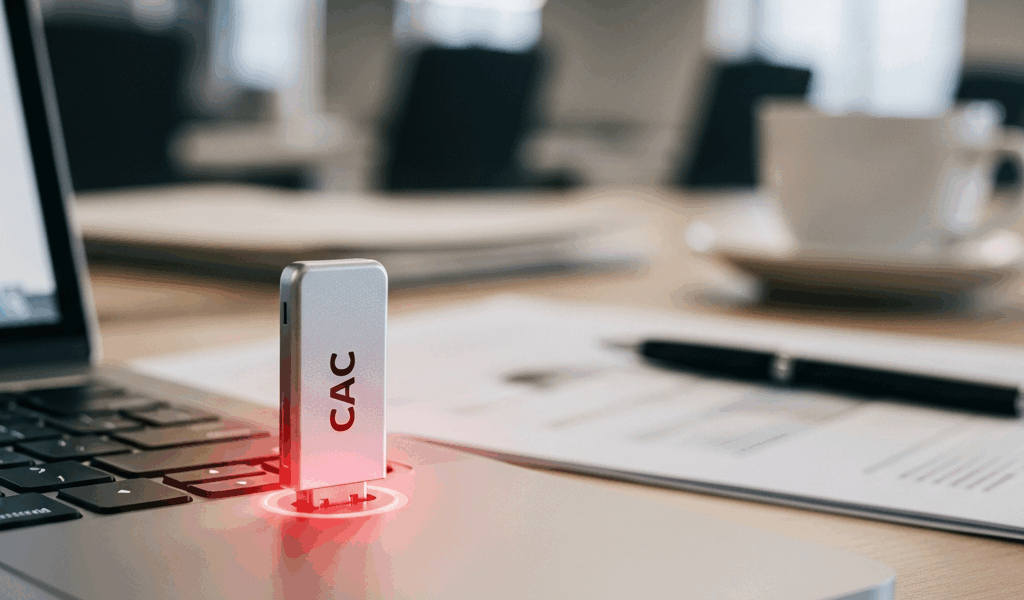
Why CAC Readers Break on Sequoia 15.3
As someone who’s managed IT infrastructure for federal contractors, I’ve watched Apple’s security updates wreak absolute havoc on CAC card reader compatibility more times than I’d like to admit. macOS Sequoia 15.3 introduced aggressive driver deprecation and tightened USB authorization protocols that directly conflict with how most military-grade card readers communicate with your Mac — we’re talking about a fundamental shift in how the operating system handles device trust. Apple essentially locked down USB devices harder than ever, and suddenly your reader that worked fine on Ventura stopped being recognized entirely. The update prioritizes system security over peripheral compatibility. That’s the trade-off. And it leaves military and government users frustrated when they can’t access secure systems on day one.
Probably should have opened with this section, honestly. The frustration you’re feeling right now is completely valid. Your CAC card reader worked yesterday. Nothing changed on your end. But Sequoia 15.3 rewrote the rules for how macOS handles USB authentication and driver loading, and nobody sent you the memo.
Quick Fixes—Try These First
Before you go nuclear and reinstall drivers, these basic troubleshooting steps solve roughly 40% of CAC reader issues on Sequoia 15.3. Most involve just reconnecting things or restarting services. All take under five minutes, honestly.
- Force restart your Mac. Click the Apple menu in the top-left corner. Select “System Settings.” Click “General,” then “Restart.” Let it fully boot. This clears cached USB device data and forces macOS to re-enumerate your reader. I know it sounds stupid. It works anyway.
- Swap USB ports. Disconnect your CAC reader from its current USB port. Wait 10 seconds — not three, not seven, but a full 10. Plug it into a different USB port on your Mac. Ideally a USB-A port if you’re using an adapter, or try the opposite side of your machine if you have multiple ports. USB authorization caches are port-specific in Sequoia 15.3. A fresh port sometimes bypasses the block entirely.
- Reseat your CAC card. Remove your CAC from the reader. Wait 5 seconds. Reinsert it firmly until you hear or feel the click. Make sure the card is facing the correct direction — gold contacts should face down on most readers. I’ve seen users blame driver conflicts when their card was backwards the entire time. Don’t make my mistake.
- Disconnect and reconnect the reader. Unplug your CAC reader from the USB port. Count to 15. Not five, not ten. Fifteen seconds. This ensures the device fully powers down and clears any hung processes on your Mac. Plug it back in and wait for the reader’s LED to stabilize — usually takes 3-4 seconds. Your Mac will re-enumerate the device from scratch.
Reinstall CAC Reader Drivers on Sequoia
If those four steps didn’t fix it, your driver is either corrupted or incompatible with Sequoia 15.3’s stricter USB authorization framework. Here’s the proper reinstall process — and yes, it matters.
Step 1—Uninstall the existing driver. Open “Applications” in Finder. Look for your CAC reader’s manufacturer folder. HID Global, Identiv, Gemalto, Athena — these are the most common. Double-click the uninstaller if one exists. If not, drag the entire manufacturer folder to Trash, then empty Trash. Go to System Settings, navigate to “General,” then “Login Items” (or “Allow & Deny” in older Sequoia builds). Remove any entries related to your CAC reader. Restart your Mac.
Step 2—Download the Sequoia 15.3-compatible driver. This part is critical. Not all driver versions work with Sequoia 15.3 — seriously. Visit the official DoD PKI repository or your specific reader manufacturer’s support page:
- HID Global drivers: Download from their official portal (search “HID Global CAC driver macOS Sequoia”)
- Identiv drivers: Check Identiv’s military/government downloads section
- Athena drivers: Available through their website under “Drivers & Software”
Look explicitly for driver versions labeled “Sequoia” or “15.x compatible” in the filename or description. Most manufacturer sites have separate downloads for macOS 12-14 and macOS 15. Grab the 15.x version. At the time of writing, HID Global’s version 1.8.2 and Identiv’s version 2.1.5 are confirmed working on Sequoia 15.3. These version numbers matter — download the wrong version and you’re back where you started.
Step 3—Install the driver. Locate the downloaded .pkg or .dmg file in your Downloads folder. Double-click it. Follow the installation prompts. You’ll likely be asked to enter your Mac password and authorize the kernel extension. Do both. This is normal. CAC reader drivers need elevated privileges to load.
Step 4—Restart your Mac. This completes the driver installation and allows macOS to load the new driver at boot. Don’t just close the installer and assume you’re done. Actually restart. Wait for your Mac to fully boot, then test your CAC reader.
Terminal Fix for PCSC Daemon Issues
PCSC stands for PC/SC — Personal Computer/Smart Card. It’s the daemon that manages card reader communication on macOS. Essentially the middleman between your CAC reader hardware and the applications that need your credentials. On Sequoia 15.3, PCSC sometimes gets stuck or fails to recognize USB-authorized devices. That’s when things get frustrating.
Only attempt this if you’re comfortable opening Terminal. If command lines make you nervous, skip to the IT support section instead.
Open Terminal (Applications > Utilities > Terminal). Copy and paste this command exactly:
sudo killall -9 pcscd
Press Enter. You’ll be prompted for your Mac password. Type it in (you won’t see the characters appear — that’s normal). Press Enter again. This kills the PCSC daemon. Your Mac will automatically restart it within 10 seconds. The fresh daemon instance often detects USB-authorized readers that the old instance missed.
If your reader still isn’t recognized after PCSC restarts, try running this command to check if your reader is actually visible to the system:
system_profiler SPUSBDataType | grep -i "card\|reader\|smart"
This searches your USB device list for anything with “card,” “reader,” or “smart” in its name. If your CAC reader shows up in the results, USB detection is working — the issue is probably driver-level. If nothing appears, your reader isn’t being recognized at the hardware level. That usually means a USB authorization problem (go back and try the “Quick Fixes” section again) or a defective reader.
When to Contact IT Support
You’ve tried the quick fixes. You’ve reinstalled drivers. You’ve even restarted the PCSC daemon from Terminal. Your CAC reader still isn’t working. Time to escalate.
Contact your unit’s IT or security office. Before you do, gather this information so you’re not just saying “my card reader broke”:
- Your Mac model and exact macOS version (go to Apple menu > About This Mac)
- Your CAC reader brand and model number
- Which driver version you installed and where you downloaded it
- The exact error message you’re seeing (if any)
- The results of that system_profiler command from the Terminal section (copy the output)
- A list of the quick fixes you already tried
Your IT office might ask you to update your CAC reader’s firmware. This is common after major macOS updates — happens every few years, honestly. Firmware updates usually require administrative access and can only be done through your organization’s secure portal or during a scheduled IT appointment. Don’t attempt firmware updates on your own. They’re specific to your agency’s security configuration.
One more thing: if your unit is managing a fleet of Macs upgrading to Sequoia 15.3, your IT team might have already identified a compatibility issue and pushed an updated driver through your MDM system. Check with them before you do anything else. They might have already solved this problem organization-wide, and you’d just be duplicating work.
Sequoia 15.3 broke a lot of CAC readers for a lot of people. It’s not your fault. It’s not your reader’s fault. It’s Apple trading compatibility for security — a choice that affects everyone in government and military agencies. Armed with these steps, though, you’ve got a solid path to getting back online. Start with the quick fixes, move to driver reinstallation, and loop in IT if nothing works. You’ll get your access back.
“`


Stay in the loop
Get the latest apple mac in government updates delivered to your inbox.