“`html
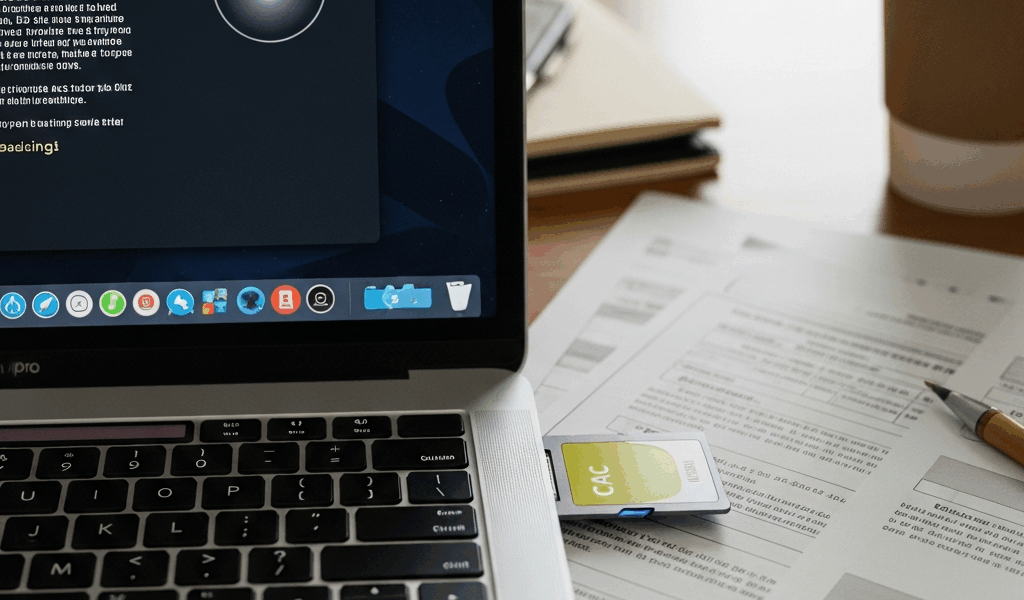
CAC Card Reader Not Working on Mac Monterey — Fix
I spent three hours last Tuesday troubleshooting why my CAC card reader stopped working after I updated to Monterey 12.5, and honestly, it turned out to be way more specific than the generic fixes floating around online. Most guides lump all macOS versions together like they’re interchangeable — they’re not. Monterey’s USB daemon architecture changed in ways that completely broke older card reader detection starting in version 12.3, and if you’re military personnel or a government contractor stuck on this version, you’ve probably noticed your reader works perfectly on a Sonoma machine sitting right next to you but stays completely invisible on yours.
That’s what makes this fix different. It’s not about running generic driver updates. You need to understand what’s actually broken under the hood.
Why Monterey Breaks CAC Readers Differently
Monterey introduced changes to the IOUSBHostDevice kernel extensions — specific ones that don’t exist in Big Sur or earlier. The 12.3 kernel update in particular modified how USB devices enumerate on the bus. Some older card readers, particularly those Gemalto/Thales units still common in government offices, started registering as “Unknown Device” instead of being properly detected by the identity management daemon.
Probably should have opened with this section, honestly, because everything that comes after depends on understanding this specific technical break.
When Apple released Monterey 12.3 in March 2022, they changed the USB power management philosophy entirely. The system became more aggressive about querying device descriptors during enumeration. Older CAC readers that don’t properly respond to certain descriptor requests get stuck in this weird intermediate state — the device appears in System Report under USB, but no driver claims it. The macOS identity services simply can’t find it.
Newer versions like Sonoma and Sequoia fixed this by implementing backward-compatible fallback logic. Monterey never got that patch. That’s why you see people complaining their readers work on Ventura but not Monterey, or the opposite. It’s not user error. It’s a specific architectural incompatibility that Apple never addressed for the Monterey line.
The Department of Defense kept tens of thousands of machines on Monterey because upgrading an entire fleet takes time, coordination, and risk assessment. That decision locked in this problem for a lot of people.
Step 1 — Verify Your Card Reader Is Detected
Before reinstalling anything, confirm whether your reader is being detected at the hardware level. If it’s not showing up here, a driver won’t help you.
Open System Report. Three ways: Apple Menu → About This Mac → System Report, or press Cmd+Space and type “System Report,” or open Terminal and run system_profiler SPUSBDataType.
Click the USB section. Look for your card reader. It should display something like “Gemalto Prox-SU” or “Thales Luna” or whatever manufacturer you’re using. Note the exact model name. Check the Vendor ID and Product ID. Write these down — you’ll need them later if support gets involved.
What you’re looking for:
- Proper device name (not “Unknown Device”)
- Speed listed as “Full Speed” or “High Speed”
- Manufacturer name visible
- Product ID in the 20xx or 30xx range (not 0000)
If your reader shows as “Unknown Device” or doesn’t appear at all — that’s the Monterey detection issue right there. The device is physically connected, but the kernel isn’t recognizing it properly.
Try a different USB port. Not a USB-C hub, an actual USB-A port on the machine itself. Sometimes Monterey’s USB hub enumeration logic causes issues with docking stations or external hubs. If it appears in a different port but not your hub, write that down. It tells us this is a USB power management issue specific to your particular setup.
Step 2 — Reinstall or Rollback CAC Drivers
What you do next depends on what you currently have installed and whether it’s actually compatible with Monterey 12.x.
Many organizations pushed driver versions 1.2.8 or later, which were optimized for Big Sur and introduced compatibility layers that actually break on Monterey. I made this mistake myself — installing the “latest” drivers made things worse, not better.
First, uninstall your current drivers completely. Download the manufacturer’s official Monterey-compatible driver package. For Gemalto Prox readers on DoD networks, you’ll want version 1.2.6 or 1.2.7 — not 1.2.8 or 1.3.x. For Thales readers, the last driver certified for Monterey is 5.4.2. These aren’t the newest versions available, but they’re the ones that work reliably on this specific OS.
To uninstall existing drivers, open Terminal and run:
sudo /Library/Frameworks/PKD/Uninstallers/uninstall.sh
Then remove the driver framework entirely:
sudo rm -rf /Library/Frameworks/PKD
Restart your Mac. This is mandatory.
Download the Monterey-compatible driver from your IT support portal or directly from the manufacturer’s website. The filename should explicitly mention “Monterey” or “macOS 12” compatibility. Install it, restart again, and verify it installed to /Library/Frameworks/PKD by opening Terminal and running:
ls -la /Library/Frameworks/PKD
You should see directories like “Uninstallers,” “bin,” and “lib.” If they’re not there, the installation failed silently. This happened to me the first time — the installer ran, showed a success message, but didn’t actually create the framework directories because of permission issues.
Step 3 — Reset USB Daemon and Safari Settings
Even with proper drivers installed, Monterey’s USB daemon sometimes caches the “Unknown Device” state from before the driver installation. You need to force it to re-enumerate.
Open Terminal and run this command to restart the USB daemon:
sudo killall -9 usbmuxd
Wait five seconds. The daemon will restart automatically. Now re-enumerate USB devices by running:
ioreg -l -p IOService -w0 | grep -i "removable"
Your CAC reader should appear in this output now. If it still shows as “Unknown” in System Report after waiting 30 seconds, the driver installation didn’t work.
Next, clear Safari’s certificate cache. This is specific to Monterey because of how the identity management daemon caches certificate information. Go to Safari → Preferences → Privacy, and click “Manage Website Data.” Search for “DoD” or your authentication server’s domain, and remove those entries.
Then clear the local certificate store by running:
rm -rf ~/Library/Keychains/System.keychain*
Restart Safari completely. Don’t just close the window — force quit it with Cmd+Q, wait 10 seconds, and reopen it. This ensures the browser rebuilds its certificate cache from scratch.
Your CAC reader should now be detected and functional for authentication.
Still Not Working? Escalation Checklist
If you’ve completed all three steps and your reader still isn’t working, you have some options before escalating to IT support.
First, test with an alternative browser. Open Firefox or Chrome and attempt to authenticate with your CAC. If it works in Firefox but not Safari, you’ve isolated the problem to Safari’s Monterey-specific certificate handling — not the reader hardware. Report this specifically to your IT support — it changes their troubleshooting approach.
If the reader doesn’t work in any browser, you have a driver or hardware enumeration issue. Contact your IT support team with this exact information:
- Your Mac model and exact Monterey version (run
sw_versin Terminal) - The reader’s Vendor ID and Product ID from System Report
- Whether it shows as “Unknown Device” or simply doesn’t appear
- The specific driver version you installed and when
- Which USB port you’re using (built-in USB-A vs hub vs USB-C)
- Output from the
ioregcommand above
Providing these details prevents IT from suggesting driver updates that won’t help — they’ve already tried those on other Monterey machines and know which versions work.
You might also try a firmware update to your reader itself, if your manufacturer provides one. Some readers have Monterey-specific firmware patches that address enumeration issues. Your IT support can usually push these remotely.
Here’s what matters: Monterey’s CAC reader issues are fixable once you understand they’re not generic macOS problems. They’re Monterey-specific architectural incompatibilities that require targeted driver versions and USB daemon resets that don’t apply to other macOS versions. Most people waste hours trying fixes meant for Sonoma or Big Sur. Don’t make my mistake. Follow the Monterey-specific path, and your reader will work again.
“`



Stay in the loop
Get the latest apple mac in government updates delivered to your inbox.