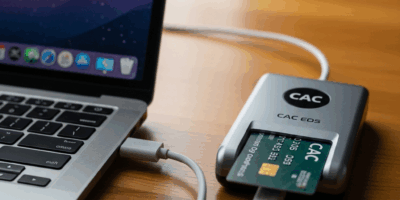
Remote access to your office Mac has become essential for federal telework. Whether you need to access files, run specialized software, or manage systems, several approved methods exist for connecting to your government workstation from home.
Understanding Remote Access Options

Government agencies typically approve one or more of these remote desktop solutions:
- Apple Remote Desktop (ARD)
- Microsoft Remote Desktop
- VMware Horizon
- Citrix Workspace
- Agency-specific remote access portals
The method available to you depends on your agency’s security posture and infrastructure. Always verify which solution is authorized before attempting to connect.
Prerequisites for Remote Access
Before setting up remote access:
- Ensure your office Mac is powered on and connected to the network
- Verify remote access is enabled on your office machine
- Connect to your agency VPN first (required for most methods)
- Have your network credentials and any required MFA devices ready
- Know your office Mac’s hostname or IP address
Apple Remote Desktop / Screen Sharing
If your agency permits, macOS built-in Screen Sharing provides a native solution.
Enable Screen Sharing on Your Office Mac
- On your office Mac, open System Settings > General > Sharing
- Enable Screen Sharing
- Click the info button to configure allowed users
- Note your Mac’s network address shown in the sharing pane
Connect from Home
- Connect to your agency VPN
- Open Finder and press Command+K
- Enter vnc://[your-office-mac-address]
- Authenticate with your network credentials
Microsoft Remote Desktop for Mac
Many agencies use Windows-based remote desktop infrastructure accessible from Macs.
Setup Steps
- Install Microsoft Remote Desktop from the Mac App Store or your agency’s software portal
- Open the app and click Add PC
- Enter your agency’s Remote Desktop Gateway address
- Configure your username in DOMAIN\username format
- Save the connection and click Connect
Gateway Configuration
Most government remote desktop setups require a gateway server. In the connection settings, click Show More and configure the Gateway with details from your IT department. This typically includes a gateway hostname and your network credentials.
VMware Horizon Client
VMware Horizon provides virtual desktop infrastructure (VDI) used by many federal agencies.
Installation and Setup
- Download VMware Horizon Client from your agency portal
- Install and launch the client
- Click Add Server and enter your agency’s Horizon connection server
- Authenticate with your credentials (CAC may be required)
- Select your assigned virtual desktop from the available options
- Double-click to connect
Horizon Features
Horizon supports USB redirection for CAC readers, clipboard sharing (if permitted), and multiple monitor configurations. Check with your IT team about which features are enabled in your environment.
Citrix Workspace
Citrix provides both virtual desktops and published applications to government users.
Setup Process
- Install Citrix Workspace from your agency’s software portal
- Open Citrix Workspace and add your agency’s StoreFront URL
- Authenticate with network credentials and MFA
- Browse available desktops and applications
- Click to launch your required resource
Troubleshooting Remote Connections
Connection Refused
Verify your VPN is connected before attempting remote access. Most government remote solutions require VPN connectivity. Also confirm your office Mac is powered on and hasn’t gone to sleep.
Authentication Failures
Check that your password hasn’t expired. Government networks often require password changes every 60-90 days. Also ensure your CAC certificates are current if smart card authentication is required.
Slow Performance
Remote desktop performance depends on your home internet speed. Close unnecessary applications on both ends. Consider reducing display quality settings in your remote desktop client for better responsiveness.
Display Issues
If your remote session appears at the wrong resolution, adjust display settings in your remote client preferences. Most clients allow you to match your local display or use a fixed resolution.
Security Best Practices
- Always disconnect your remote session when finished
- Lock your remote desktop (Control+Command+Q) if stepping away
- Don’t save passwords in remote desktop clients on shared computers
- Report any unauthorized access attempts to your security team
- Keep your remote access client software updated
Remote access enables productive telework while maintaining security. Work with your IT department to identify the approved solution for your agency and get properly configured for seamless remote productivity.