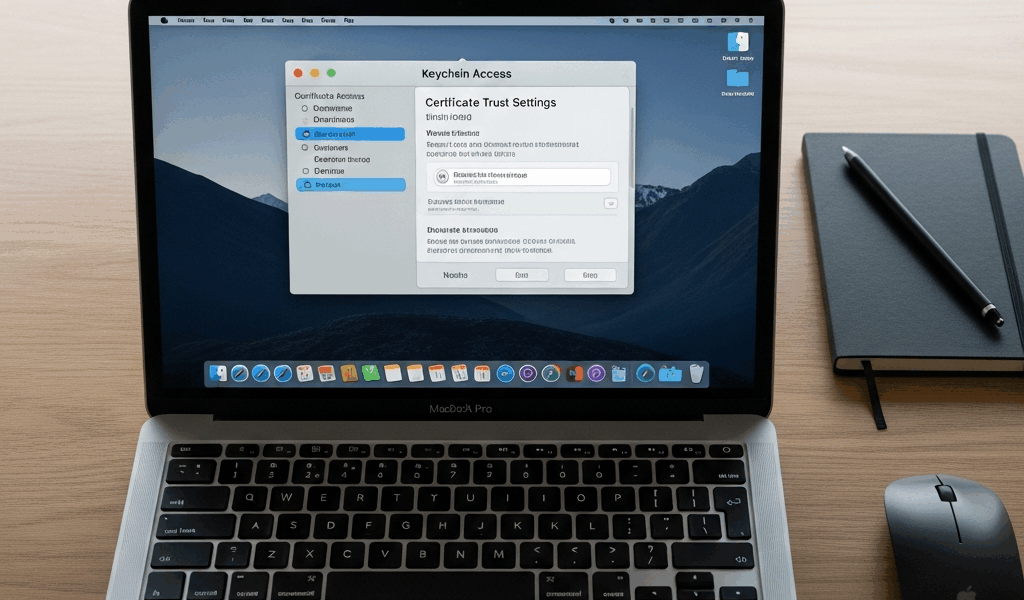
Your Mac won’t load a DoD website. Safari’s throwing a certificate warning, the page refuses to connect, and you’re stuck on a screen that says the connection isn’t private. Meanwhile your coworker on a government-issued Windows laptop pulled up the same page in three seconds flat. The problem is straightforward — your Mac doesn’t ship with Department of Defense root certificates installed, so you have to add them yourself.
This walkthrough covers the current process for macOS Sequoia (15.x), Sonoma (14.x), and Ventura (13.x) as of March 2026. Works the same on M-series and Intel Macs.
Download the DoD Root Certificates
Go to the DISA Cyber Exchange site and grab the certificate bundle. The URL is https://public.cyber.mil/pki-pke/pkipke-document-library/ — look for something labeled “DoD PKE Cert Bundle” or “InstallRoot.” DISA renames these files every so often, but the page stays the same. Download the zip file for macOS. Don’t grab the Windows .msi installer by accident — I’ve done that more than once.
If that URL is blocked on your work network (not unusual), pull it up on your phone or home computer instead. The file is just a collection of public certificates. Nothing classified, nothing sensitive. Toss it on a USB drive and bring it in if you need to.
Unzip the download and you’ll find a folder with several .cer or .pem certificate files. The important ones are the root CAs — typically named “DoD Root CA 3,” “DoD Root CA 4,” “DoD Root CA 5,” and “DoD Root CA 6.”
Install Certificates Using Keychain Access
Open Keychain Access from Applications > Utilities, or just hit Command+Space and type it in.
In the left sidebar, click on the System keychain. Not “login” — that only covers your user account. You want System so the certs work across the whole machine. Then go File > Import Items, find your unzipped certificates folder, and select all the DoD root CA files. Your Mac asks for an admin password. Enter it.
They’ll show up in the System keychain right away, but you’ll probably see a red “X” or a warning that says “This certificate is not trusted.” Don’t panic — that’s expected. You still need to tell macOS to actually trust them.
Trust the Certificates
Double-click the first DoD Root CA certificate in Keychain Access. A detail window opens up. Click the little triangle next to Trust to expand that section. Find the dropdown next to “When using this certificate” and change it from “Use System Defaults” to “Always Trust.” Close the window — macOS asks for your password one more time.
Now do the same thing for each remaining DoD Root CA (3, 4, 5, and 6). Yeah, you have to click through each one individually. It takes maybe 30 seconds per cert. Once the root CAs are trusted, all the intermediate certificates that chain up to them inherit that trust automatically.
When you’ve set trust on all four, close Keychain Access completely and restart whatever browser you’re using.
The Terminal Method (Faster if You’re Comfortable)
If you’d rather skip the clicking, Terminal handles the whole thing in about 20 seconds. Open Terminal and run this for each certificate file:
sudo security add-trusted-cert -d -r trustRoot -k /Library/Keychains/System.keychain /path/to/DoD_Root_CA_3.cerSwap /path/to/DoD_Root_CA_3.cer for the actual file path. Run it once per root CA. First command asks for your admin password; the rest usually don’t re-prompt in the same session.
Want to knock out every .cer file at once from the unzipped folder? This loop handles it:
for cert in /path/to/certs/*.cer; do
  sudo security add-trusted-cert -d -r trustRoot -k /Library/Keychains/System.keychain "$cert"
done
One password prompt, all certs installed and trusted. Done.
Verify It’s Working
Open Safari first — not Chrome. Safari reads the macOS keychain directly, so it’s the cleanest test. Navigate to a DoD site you know requires certs:
- https://web.mail.mil — DoD enterprise email
- https://militarycac.com — handy for CAC testing too
- https://www.dmdc.osd.mil — DMDC portal
If the page loads without a certificate warning, you’re set. Still getting an error? Double-check that you trusted all four root CAs. Missing even one breaks the chain for certain sites — I spent 20 minutes troubleshooting once before realizing I’d skipped Root CA 5.
Chrome and Firefox Need Extra Steps
Safari and most macOS apps pull certificates straight from the system keychain. Chrome does too on Mac (this changed in recent versions — it now uses the macOS certificate store). If Safari works after a restart, Chrome should too.
Firefox is the oddball. It keeps its own separate certificate store and ignores the macOS keychain entirely by default. Two ways to fix this: you can manually import the root CA files through Firefox Preferences > Privacy & Security > Certificates > View Certificates > Authorities tab. Or — the path I’d recommend — go to about:config in Firefox and set security.enterprise_roots.enabled to true. That tells Firefox to read the system keychain alongside its own store. Much less clicking.
If Certificates Still Don’t Work
A few things to check when everything above is done but sites still throw errors:
Wrong keychain. If you accidentally imported into the “login” keychain instead of “System,” other accounts and some system-level processes can’t see them. Open Keychain Access, check where the certs landed, and re-import to System if needed.
Stale certificate bundle. DoD rotates root CAs every few years. If you downloaded the bundle ages ago, go back to cyber.mil and grab a fresh copy. Root CA 6 is relatively new — older bundles won’t have it.
VPN or proxy messing things up. Some government VPN clients and web proxies perform SSL inspection, which breaks certificate chains in ways that make no sense when you’re troubleshooting. If you’re on a VPN and sites aren’t loading despite having the right certs, disconnect and test on a direct connection. If it works without the VPN, the problem is the proxy — talk to your network team.
macOS upgrade reset your trust settings. Major version jumps (Ventura to Sonoma, Sonoma to Sequoia) sometimes reset certificate trust. If everything was working fine and broke after an OS update, open Keychain Access and check whether the DoD root CAs still show “Always Trust.” They might have reverted to “Use System Defaults.”
CAC reader issues are a different problem entirely. Installing DoD certificates lets your Mac recognize DoD websites. Logging into those sites with your CAC card requires a working reader and the right middleware — on modern macOS, that’s CryptoTokenKit (built in). If the site loads fine but your CAC isn’t being detected when you plug it in, that’s a card reader or driver issue, not a certificate issue.



Stay in the loop
Get the latest apple mac in government updates delivered to your inbox.