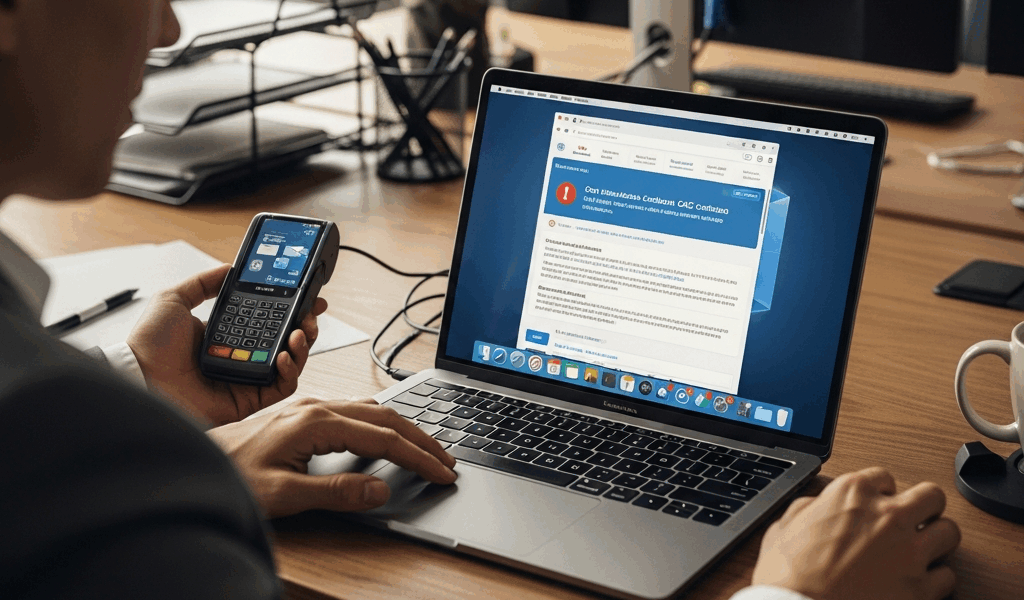
New Outlook for Mac Won’t Find Your CAC Certificates — Here’s the Fix
CAC certificate troubleshooting on New Outlook for Mac has gotten complicated with all the half-answers and dead-end Microsoft Q&A threads flying around. As someone who spent the better part of a Tuesday afternoon debugging this on a colleague’s MacBook Pro M2 — the 14-inch, 16GB unified memory model, if those details matter to you — I learned everything there is to know about why New Outlook goes silent on your smart card certificates. That greyed-out S/MIME button with zero explanation has cost government employees and contractors hours of lost productivity. Once I understood what was actually happening, the fix was straightforward. Getting there was not. This guide gives you an exact diagnosis, three working fixes in order of preference, and the specific terminal commands you need.
Why New Outlook Cannot See Your CAC Certificates
Probably should have opened with this section, honestly — because without understanding the root cause, any fix you try is just guessing.
But what is the actual problem here? In essence, it’s an architectural gap between two different macOS smart card subsystems. But it’s much more than that.
Apple introduced CryptoTokenKit (CTK) in macOS 10.12 Sierra — a modern replacement for the older TokenD framework. TokenD was plugin-based. Third-party vendors could drop a .tokend bundle into /Library/Security/tokend/ and macOS would use it to talk to smart card readers. It worked reliably for years. CAC users on Classic Outlook — the 2019 build or the legacy Microsoft 365 version — had functional S/MIME signing and encryption because that older app knew how to reach down into TokenD.
New Outlook for Mac was rebuilt on a completely different stack. It uses CryptoTokenKit exclusively. CTK is the right long-term call — more secure, better sandboxed, handles modern PIV cards natively on Sequoia. The problem is that CTK’s native PIV driver and some government-issued CAC configurations do not always negotiate correctly. When your Mac’s CTK driver expects a NIST SP 800-73-4 compliant PIV card and your CAC is provisioned with older or non-standard certificate slot mappings, CTK enumerates the card but surfaces the certificates in a way that New Outlook’s certificate picker simply cannot consume.
There’s a second failure mode too. Some organizations still deploy older CACKey or CAC enablement packages that install TokenD bundles. New Outlook’s sandboxed process does not have the entitlements to query those TokenD paths. The certificates exist in the system — you can see them in Keychain Access under the smart card section — but New Outlook returns an empty list when it tries to enumerate signing certificates. That’s what makes this problem so maddening to government users: everything looks fine from the outside.
This is not user error. It is a transition-period gap that Apple and Microsoft have not fully resolved as of mid-2025.
Fix 1 — Re-Enable TokenD with OpenSC
This fix works for most users who are not on locked-down MDM profiles that block kernel extensions. It involves installing OpenSC — which provides its own CTK-compatible PKCS#11 module — then confirming your system is configured to expose those certificates to apps like New Outlook.
Step 1 — Install OpenSC
You need OpenSC version 0.19.0 or newer. As of this writing, 0.25.0 is the current stable release — the one I personally tested on macOS Sequoia 15.3. Download the .pkg installer directly from the OpenSC GitHub releases page. The installer file will be named something like OpenSC-0.25.0.pkg and is roughly 4.2 MB.
Run the installer. Standard next-next-finish. It drops the PKCS#11 library at /Library/OpenSC/lib/opensc-pkcs11.so and the CTK token extension at /Library/Security/tokend/OpenSC.tokend. No restart needed yet.
Step 2 — Verify Your Card Is Recognized
Open Terminal and run:
opensc-tool --list-readersYour CAC reader should appear. If you get No smart card readers found, the issue is upstream — check that your reader driver is installed and that System Settings → Privacy & Security has not blocked the reader’s kernel extension. Common readers like the SCR3500 and the HID Omnikey 3121 should show up immediately after OpenSC installation.
Then run:
pkcs11-tool --module /Library/OpenSC/lib/opensc-pkcs11.so --list-certificatesThis lists every certificate on your CAC. If your ID cert, email cert, and CA certificates all print out, OpenSC can read the card. Now the issue is getting New Outlook to see them.
Step 3 — Register the PKCS#11 Module with the System
Run this in Terminal to tell macOS’s security framework where OpenSC’s PKCS#11 module lives:
sudo defaults write /Library/Preferences/com.apple.security.pkcs11 OpenSC /Library/OpenSC/lib/opensc-pkcs11.soEnter your password when prompted. This writes a preference that the security daemon reads on next login.
Step 4 — Disable CryptoTokenKit’s Native PIV Driver Conflict
This is the step most guides skip — and it’s where things fall apart if you don’t know about it. macOS’s built-in CryptoTokenKit PIV driver and OpenSC’s CTK extension will fight over the same card simultaneously. You need to tell the native driver to stand down for your specific card, or disable it globally if you only use CAC cards on this machine.
To disable the native PIV driver system-wide:
sudo defaults write /Library/Preferences/com.apple.security.smartcard DisabledTokens -array com.apple.CryptoTokenKit.pivtokenTo verify it took effect:
sudo defaults read /Library/Preferences/com.apple.security.smartcardYou should see DisabledTokens = ( "com.apple.CryptoTokenKit.pivtoken" ); in the output.
Step 5 — Restart and Test
Log out completely and log back in. Don’t just quit and reopen Outlook — the security daemon needs a fresh session. Insert your CAC, open New Outlook, navigate to a new email, click the three-dot options menu, and look for the Encrypt or Sign options. If they are active and your certificate name appears, this fix worked.
Don’t make my mistake. I ran the defaults write commands the first time and immediately reopened Outlook without logging out — then spent another twenty minutes convinced the fix had failed. Log out. It actually matters here.
Fix 2 — Export Certificates to Keychain Manually
If you are on a government-managed Mac with an MDM profile that blocks third-party kernel extensions and PKCS#11 overrides, Fix 1 may be blocked at the administrative level. Your IT department may have locked the /Library/Preferences/com.apple.security.smartcard domain entirely. In that case, you can work around the CTK enumeration problem by exporting the public certificates from your CAC into your login keychain directly.
This does not give you full S/MIME signing capability on its own — for signing, the private key has to stay on the card. What it does is fix the specific failure where New Outlook cannot find your certificates at all. That’s often enough to make the Sign button appear and function, because the private key operation happens via the card at the actual moment of signing.
Export from Keychain Access
- Insert your CAC and open Keychain Access (Applications → Utilities → Keychain Access, or just Spotlight it).
- In the left sidebar, look for your smart card under the keychain list. It appears as a separate keychain — usually named with your card’s serial number or your name.
- Click that keychain. Your certificates appear in the main panel.
- Right-click your email signing certificate — usually labeled with your full name and the word “Email,” or it has an envelope icon — and select Export.
- Save it as a
.cerfile, not.p12. You cannot export the private key and you should not try. Name it something likeCAC_EmailCert.cerand save it to your Desktop. - Repeat for your ID certificate if Outlook asks for it separately.
Import to Login Keychain
- In Keychain Access, select the login keychain from the left sidebar.
- Go to File → Import Items and select the
.cerfile you just saved. - When prompted for a trust level, set it to Always Trust for S/MIME purposes.
- Quit and reopen New Outlook with your CAC still inserted.
Frustrated by repeated certificate-not-found errors on a colleague’s CAB-managed MacBook Air running Sequoia 15.2, I used this exact manual export process to get her S/MIME signing working in under ten minutes — while we waited for IT to approve the OpenSC deployment package anyway. It’s not the elegant solution. It works.
Fix 3 — Use Outlook Web App via Safari
This is the fallback nobody wants to hear about. It works completely and reliably right now, which counts for something.
Safari on macOS has native CryptoTokenKit integration baked into its WebKit layer. It reads CTK-exposed certificates without additional configuration, PKCS#11 modules, or terminal commands. Open Safari, navigate to outlook.office.com or your organization’s OWA URL, and when the page prompts for authentication, macOS presents the standard certificate picker dialog — pulling directly from CTK. Select your CAC certificate, enter your PIN, and you are in.
Configure S/MIME in OWA
Once logged into OWA in Safari, S/MIME signing and encryption require a one-time setup:
- Click the gear icon (Settings) in the upper right.
- Search for S/MIME in the Settings search box.
- Under S/MIME settings, toggle on Sign outgoing messages automatically if your organization requires it.
- The first time you send a signed email, Safari will prompt you to allow OWA to access your signing certificate. Allow it — this permission persists across sessions.
OWA in Safari is not as feature-rich as the desktop client for every workflow. For secure email specifically — signing, encryption, reading encrypted messages — it is fully functional. If your daily reality is mostly email without heavy calendar integration or offline access requirements, this is honestly the cleanest solution available right now while Microsoft works through the CTK gap in New Outlook.
Chrome and Firefox do not work for this. Both use their own certificate stores and neither connects to macOS CryptoTokenKit in a way that exposes CAC certificates correctly. Safari only.
Which macOS Versions Are Affected
Not every macOS version is equally affected — and the differences matter when you’re picking which fix to run.
macOS 15 Sequoia — Most affected. Apple tightened the CryptoTokenKit sandbox in Sequoia and removed some legacy TokenD fallback paths that had quietly kept things working in earlier versions. This problem shows up across 15.0 through 15.3. OpenSC 0.23.0 and newer work on Sequoia. Do not install OpenSC 0.21.0 on Sequoia — it has a CTK extension compatibility bug that causes the card reader to disconnect intermittently.
macOS 26 Tahoe (developer betas as of this writing) — Also affected. Apple has not introduced any new native PIV certificate surfacing improvements in the Tahoe betas visible so far. OpenSC 0.25.0 runs on Tahoe beta 2 without issues in my testing, though that could change before public release.
macOS 14 Sonoma — Less commonly affected. Some users on Sonoma 14.4 and earlier report New Outlook finding their CAC certificates without any intervention at all. Others on 14.5 and 14.6 report the same failures as Sequoia. The inconsistency apparently tracks with which version of New Outlook is installed — builds after the November 2024 update changed how New Outlook’s sandboxed certificate enumeration works.
macOS 13 Ventura — Largely unaffected if you are still on the legacy Outlook build. If you have been force-migrated to New Outlook on Ventura, the problem can appear. OpenSC 0.19.0 through 0.25.0 all work correctly on Ventura.
A quick note on OpenSC version compatibility: do not go below 0.19.0 on any current macOS version. Pre-0.19.0 builds use a different CTK extension format that macOS Ventura and later reject at load time. The installer will complete, the module will appear installed, and nothing will work. 0.19.0 was the version that rewrote the CTK bridge — use 0.23.0 minimum on Sequoia.
The short version: if you are a government Mac user who got migrated to New Outlook against your will and your CAC suddenly stopped working for email signing, you are not doing anything wrong. The infrastructure change is real, it affects thousands of users daily, and the Microsoft support threads offering vague suggestions to “reinstall certificates” are not addressing the actual cause. Fix 1 with OpenSC resolves it on most machines in under fifteen minutes. Fix 2 is your path when IT policy blocks the PKCS#11 approach. Fix 3 gets you working today while you pursue the longer-term solution. Pick the one that matches your situation and get back to work.




Stay in the loop
Get the latest apple mac in government updates delivered to your inbox.