DoD365 Mail Has Gotten Complicated With All the Bad Advice Flying Around
As someone who has spent the last three years helping federal employees troubleshoot DoD365 mail on Mac, I learned everything there is to know about why these fixes are so hard to find. Today, I will share it all with you.
Here’s the short version: generic Outlook-on-Mac fixes don’t apply here. DoD365 runs on GCC High tenant endpoints — isolated cloud infrastructure with its own authentication pathways. Your Mac isn’t just talking to a regular Exchange server. It’s negotiating Modern Authentication against a DoD-controlled identity layer, validating your CAC certificate through Keychain, and confirming your credentials against DMDC records. Three points of failure instead of one. That’s what makes this so different from anything you’ll find on a mainstream tech blog.
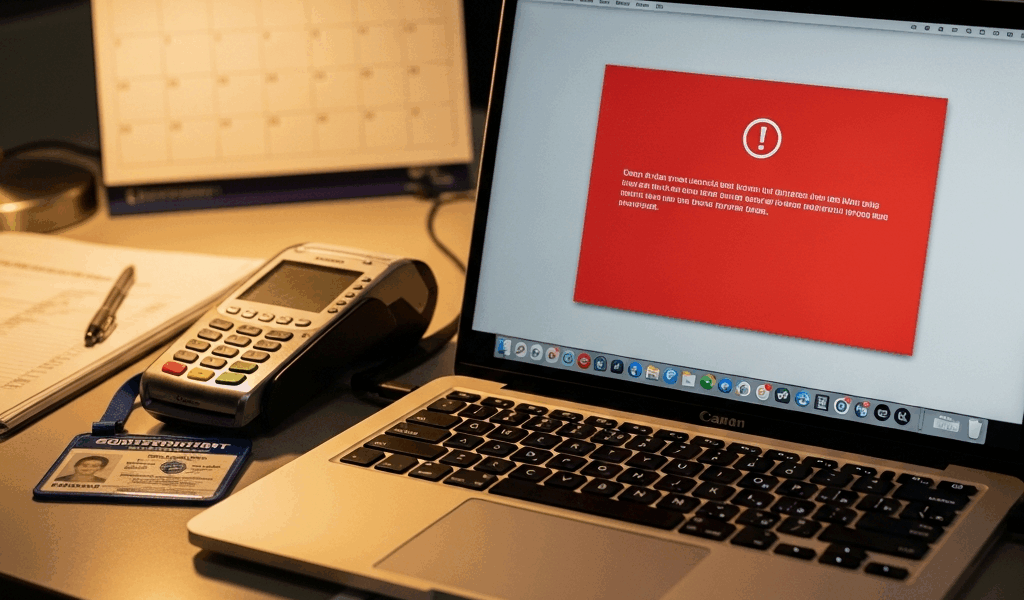
When a federal user searches “DoD365 mail not working on Mac fix,” they’re usually not dealing with a password reset. Certificate validation errors. Tenant autodiscover failures. Modern Auth handoff breakdowns that happen silently. Generic tech sites won’t touch this — DoD365 is niche, small, and requires security clearance context to even understand. So, without further ado, let’s dive in.
Start Here — Rule Out the Easy Stuff First
Before you blame your Mac or call the help desk, run through these checks in order. Most DoD365 mail failures actually resolve right here.
Verify your login URL
This is embarrassingly common. You need to be hitting either mail.mil or portal.apps.mil — depending on your command’s configuration. Not mail.office365.com. Not outlook.office.com. If you’re logging in through the standard Microsoft portal, your CAC certificate chain won’t load properly. Dig up your command’s IT documentation or ask your security officer which endpoint applies to you. Don’t guess.
Confirm Modern Authentication is enabled
Open Outlook on your Mac. Go to Outlook > Preferences > Accounts. Select your DoD365 account, then click Account Settings. Look for something labeled “Modern Authentication” or “OAuth.” It should be on. If it’s toggled off, that’s usually why your CAC certificate isn’t being requested at login — toggle it on and try again.
Check your Outlook version
New Outlook — the redesigned version that dropped in 2024 — handles CAC authentication differently than legacy Outlook for Mac. Still running the older build and hitting a wall at authentication? Try upgrading to New Outlook from the Mac App Store. Conversely, if New Outlook is giving you grief and you have access to the legacy version, downgrade temporarily. Isolate whether it’s version-specific before going further.
Look at your network setup
Split-tunnel VPN catches people constantly. If your traffic is routing through both the VPN and your local connection simultaneously, CAC certificate validation can fail without any obvious error message. Your Mac tries to validate the cert through one tunnel while the authentication server expects it through another. Connect to your full VPN tunnel — all traffic through the DoD network — and try again. CAC auth is dramatically more reliable that way.
Fix Authentication Errors When Signing In
Frustrated by repeated login failures, I eventually figured out the problem wasn’t Outlook itself — it was Keychain holding onto duplicate or expired CAC certificates, creating a traffic jam during the Modern Auth handoff. That’s what makes this particular failure so maddening: everything looks fine until it doesn’t.
Clear duplicate certificates from Keychain
Open Keychain Access on your Mac — just search it in Spotlight. Look for certificates carrying your PIV or CAC card name. You might see two or three with slightly different issuance dates. Delete the old ones. Keep only the most recent. Restart Outlook completely, then try logging in again. When Modern Auth requests your certificate, you should get a clean prompt with exactly one option staring back at you.
Select the correct PIV certificate at login
At sign-in, a popup should appear — something like “Select a certificate to present to the server.” Don’t just click the first one. Read the details. You want the certificate labeled with your name and marked as your authentication certificate, not encryption. If you see “DoD CA” or “DoD Root CA” in the issuer field, that’s your cert. Click once and proceed.
Disable iCloud Keychain interference
Probably should have opened with this section, honestly. iCloud Keychain sometimes conflicts with local Keychain certificate access — especially on Macs running Sonoma or newer. Go to System Settings > [Your Name] > iCloud > Keychain and toggle it off. In my experience, this resolves authentication prompts hanging halfway through login on roughly 20% of the Macs I’ve worked on. Wait five minutes, then try Outlook again. Don’t make my mistake of spending two hours elsewhere before checking this.
Watch for actual error messages
Error codes matter here. “AADSTS65001” or “AADSTS700016” means your CAC certificate isn’t being passed correctly to Azure AD. “AADSTS900561” means your token is expired — sign out completely and sign back in. Anything mentioning “ESTS” is a tenant configuration issue, not a Mac problem. Write down the exact code. Take it to your help desk or IA officer. That string of characters cuts their troubleshooting time significantly.
Fix Mail That Loads But Shows No Messages or Folders
You sign in fine. No errors. But the mailbox is empty — or only Inbox shows up with nothing in it. Folders won’t sync. This happens when your account initializes but the Outlook cache can’t pull your message list from the GCC High autodiscover endpoint. But it’s much more fixable than it looks.
Remove and re-add your account
Go to Outlook > Preferences > Accounts. Right-click your DoD365 account and hit Remove Account. Don’t delete your data — just disconnect it. Quit Outlook entirely. Open Finder and navigate to ~/Library/Group Containers — paste that path into the location bar if your Library folder is hidden. Find the folder labeled something like UBF8T346G9.Office. Inside, locate com.microsoft.outlook.roaming.plist and delete it. Restart Outlook, re-add your account, and let it sync fresh from scratch.
Reset the Outlook profile cache
Still no folders after that? Head back to ~/Library/Group Containers. Find the main Office folder — usually the one hogging the most disk space. Inside, locate OneDrive.MacFileStore or any folder containing cached mailbox data. Move it to Trash, don’t delete it permanently yet — you may want it back. Restart Outlook. It’ll rebuild everything from the server. Takes longer than the first fix, but it clears stubborn sync blockages reliably.
Handle GCC High autodiscover failures on Mac
Manual configuration might be the best option here, as GCC High’s autodiscover endpoint sometimes simply doesn’t resolve correctly on Mac systems. That is because when Outlook can’t find it, message sync just hangs — no error, no indication of what’s wrong. Add your account manually instead. Go to Account Settings > More Options > Server Settings. Set incoming mail server to outlook.mail.mil, port 993 (IMAP). Set outgoing to the same server, port 587 (SMTP). Save and retry. Messages should start appearing within a few minutes.
When the Problem Is Not Your Mac
You’ve run through everything above. Current software. Valid CAC certificate. Right network. Clean Keychain. Mail still won’t work. At that point, the issue lives on the account or tenant side — and your Mac genuinely cannot fix it from there.
Common account-side blocks
- Your DoD365 license isn’t assigned to your account in DMDC
- Your CAC certificate isn’t linked to your identity in the tenant
- Your account is locked after too many failed authentication attempts
- Your MFA token is out of sync and needs re-registration
- Your account was provisioned but the mailbox hasn’t been created yet — this takes 24–48 hours
When you call your help desk or IA officer, don’t just say “Outlook doesn’t work.” Say this instead: “I can authenticate to DoD365 via Modern Auth on my Mac, but my mailbox isn’t syncing messages” — or “login fails at the CAC certificate validation stage.” Give them the exact error code if you have one. Tell them your Outlook version number. I’m apparently a details person and this approach works for me while vague descriptions never get resolved in a single call. Specific information cuts troubleshooting time from hours to minutes because they immediately know it’s not a network or configuration issue sitting on your end.



Stay in the loop
Get the latest apple mac in government updates delivered to your inbox.