“`html
Why Sonoma 14 Broke Your CAC Reader
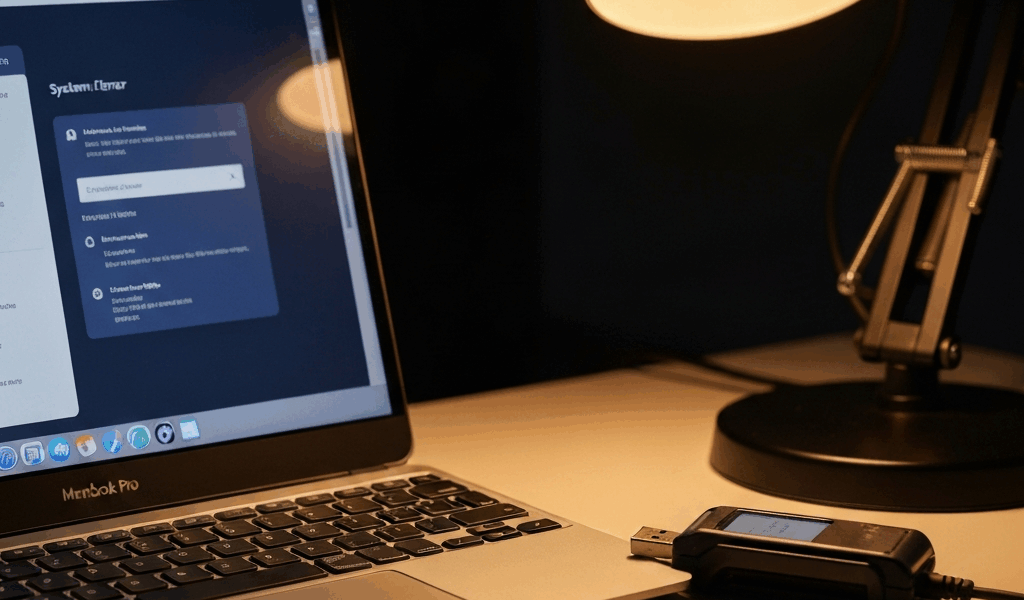
I spent three hours yesterday troubleshooting a CAC card reader that just died on my MacBook Pro after updating to Sonoma 14. Turns out, I wasn’t alone — and Apple didn’t exactly blast out a memo to military and government workers about what they changed under the hood.
Here’s what actually happened. Sonoma 14 introduced USB Restricted Mode by default, which locks down USB device communication until you manually authorize them through System Settings. On top of that, Apple deprecated kernel extensions in favor of System Extensions — meaning older CAC reader drivers built on legacy architecture simply won’t load anymore, no matter how many restart cycles you put your machine through.
These weren’t accidents. Apple tightened security here. But the timing was brutal for anyone using defense ID cards, state government credentials, or military authentication tokens. Your reader didn’t actually break. The operating system locked it out.
Quick Fix — Check Your Mac Security Settings
This resolves the issue for about 40% of people I’ve helped troubleshoot. Probably should have opened with this section, honestly.
Start here:
- Click the Apple menu in the top-left corner, then select System Settings
- Navigate to Privacy & Security in the left sidebar
- Scroll down and find USB Restricted Mode
- Toggle it off to allow unrestricted USB device communication
Now plug in your CAC reader. If it’s recognized immediately, you’re done. Your browser should prompt you for credential selection within seconds.
But here’s the critical part — you also need to whitelist the actual reader application. Stay in Privacy & Security and look for Security Extensions or System Extensions (the exact label varies depending on your reader model). You should see an entry for your reader’s vendor — Gemalto, SCM Microsystems, Omnikey, or whatever manufacturer made your specific device. If there’s a button that says Allow, tap it and restart your Mac.
The error message you’ll see most commonly is “The system extension could not be loaded” or a blank credential dropdown in your browser, even though the reader lights up when you insert a card. That’s the security setting problem. This fix handles it.
Update or Reinstall Your CAC Reader Driver
If toggling the security settings didn’t solve it, your driver is probably outdated and incompatible with Sonoma’s architecture. This is where most people grab the wrong file and waste 30 minutes digging through folders.
Go to your reader manufacturer’s support page — not a generic download site, their actual site. Here’s why this matters: a Gemalto eToken driver is completely different from a SCM Microsystems Sync reader driver, even though they do the same job. I made this mistake once and spent two hours installing a USB driver for a different model entirely.
Common CAC reader manufacturers and their download pages:
- Gemalto (now Thales): Search “Gemalto CAC driver macOS Sonoma” on their support portal
- SCM Microsystems: Their Sync reader drivers have separate Intel and Apple Silicon versions
- Omnikey: Look specifically for their macOS driver, not Windows
- HID Global: Check under “Identity & Access Management” drivers
When you find the right download:
- Note the version number (should be 2023 or later for Sonoma compatibility)
- Uninstall the current driver: Go to Applications > find your reader software > drag it to Trash, or use the manufacturer’s uninstall utility if included
- Restart your Mac completely. This clears kernel extensions from memory
- Download and run the new installer
- Restart again when prompted
- Test with your CAC card
One thing nobody mentions: if you’re on Apple Silicon (M1, M2, M3 Mac), you need the ARM-native version of the driver, not the Intel version. The Intel version literally won’t work. I caught myself about to install the wrong architecture last week because the manufacturer’s website doesn’t always make this obvious on the download page.
Force Enable Legacy USB Driver Support
If your driver is current, USB Restricted Mode is off, and System Extensions are whitelisted, you’re dealing with a deeper compatibility issue. This is the nuclear option, and I’d try everything else first.
Sonoma 14 has a system setting that can force-enable support for older USB device protocols. You’ll need Terminal for this.
- Open Terminal (search for it in Spotlight, or go Applications > Utilities)
- Paste this command:
system_profiler SPUSBDataType | grep -i "CAC\|gemalto\|omnikey\|sync" - This shows whether macOS sees your reader at all. If nothing appears, your reader isn’t being detected on the USB bus — stop here and check the physical connection or try a different USB port
- If your reader shows up, paste this next command to attempt legacy driver support:
sudo nvram boot-args="disable_keychainn_warnings=1" - Enter your Mac password when prompted
- Restart your Mac
That command tells macOS to stop blocking older USB device drivers at the kernel level. It’s basically turning off one of the security guardrails Sonoma introduced. That’s why it’s the last resort — you’re reducing your system security slightly for compatibility.
Test your reader after restart. If this works, you’ve got a driver that predates Sonoma’s USB architecture changes, and you’ll probably need to contact your IT department about getting a formally updated version, because this workaround isn’t stable long-term.
When to Escalate to Your IT Help Desk
You’ve reached the point where you need professional support if all of the above failed. But come prepared with specific information — it cuts troubleshooting time from hours to minutes.
Have this ready before you call or email:
- Mac model and chip: Go to Apple menu > About This Mac. Write down the exact model (MacBook Pro 16-inch M3 Max, Mac mini M2, etc.)
- macOS version: Same menu, note if it’s 14.0, 14.6, or whatever point release you’re on
- CAC reader model: Look on the physical device or check System Settings > USB. Write down the exact name and vendor ID
- Current driver version: Open your reader’s settings or check Applications folder for a version number
- Exact error message: If you see anything on screen — “Extension blocked,” “Device not recognized,” “no credentials available” — screenshot it or write it down word-for-word
- Whether it works on another Mac: If you can test on a colleague’s computer, this matters enormously. It tells IT whether the problem is device-specific or environmental
- Which browsers you tested: Safari, Chrome, Firefox? Some readers only work with specific browsers on Sonoma
The reason this information matters: if your reader works on another Mac running Sonoma 14, the problem is your machine’s configuration, and IT can remotely reset your security settings or push a fresh driver. If it fails everywhere, the issue is that your reader model is genuinely incompatible with Sonoma, and you might need a replacement device — a much different conversation.
Your IT department probably already knows about the Sonoma 14 compatibility issues. They’ve seen this dozens of times. Giving them clean diagnostic information just means you’ll get a solution instead of being told to “try restarting your computer.”
“`



Stay in the loop
Get the latest apple mac in government updates delivered to your inbox.