Your Mac used to read your CAC just fine. Now it does not. The card reader light blinks, Keychain Access shows nothing, and every DoD site acts like you do not exist. CAC failures on Mac almost always come down to one of five causes, and none of them require calling your IT department if you know where to look.
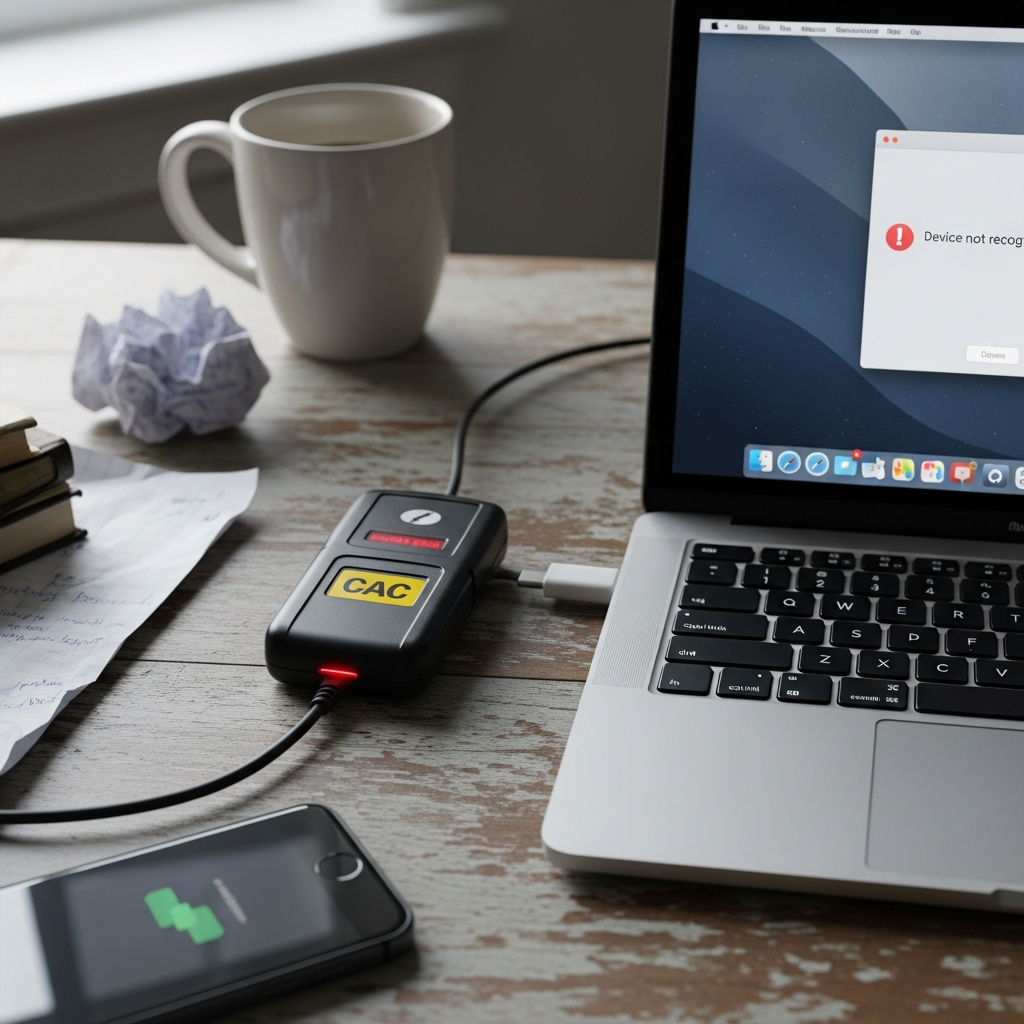
Check the Physical Connection First
The most common cause of sudden CAC failure is the most boring: a loose USB connection. Smart card readers draw power from the USB port and are sensitive to intermittent contact. Try a different USB port — direct to the Mac, not through a hub or dock. USB-C hubs and Thunderbolt docks introduce additional points of failure. If your reader works in a direct port but not through your dock, the dock’s USB controller is the problem.
Check the card orientation. The chip should face up on most readers (SCR3310, Identiv). A card inserted upside down will cause the reader LED to blink but no certificates will appear. Wipe the chip contacts with a dry cloth — dirt and skin oil accumulate and interfere with the electrical connection.
Smart Card Token Not Appearing in Keychain Access
Open Keychain Access and look for your CAC token in the left sidebar under “Tokens.” If the token does not appear, the system is not detecting the card. Open Terminal and run: security list-smartcards. If no cards are listed, the reader driver or CryptoTokenKit is not loading.
macOS Ventura and later include built-in PIV smart card support through CryptoTokenKit. Older macOS versions may need OpenSC middleware. If you recently updated macOS and your CAC stopped working, the update may have changed the smart card framework. Reinstall OpenSC if you were using it, or verify that CryptoTokenKit is functioning with: pluginkit -m | grep -i pivot in Terminal.
Certificate Trust Issues After macOS Update
A macOS major update can reset the trust settings on DoD root certificates in your Keychain. Your CAC works — the reader sees it, certificates appear — but websites reject the authentication because the root CA certificates are no longer trusted.
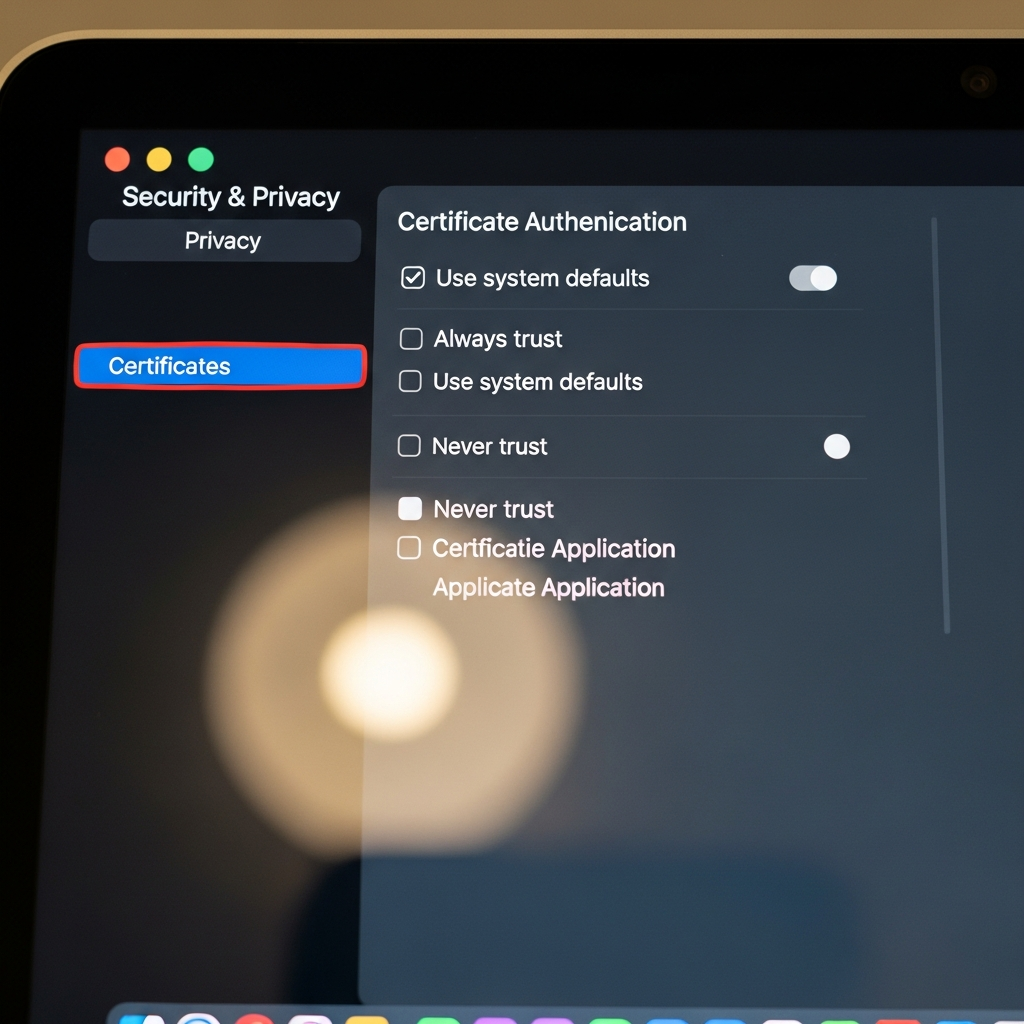
Open Keychain Access, search for “DoD” in the System keychain, and check the trust settings on each DoD root certificate. If any show “Use System Defaults” or “Never Trust,” double-click, expand Trust, and set to “Always Trust.” Re-download the latest DoD root CA bundle from militarycac.com if the certificates are missing entirely.
PIN Lockout and Card Expiration
Three consecutive wrong PIN entries lock the CAC. This is a security feature you cannot override on the Mac side — the card itself locks. You need to visit your nearest ID card office (RAPIDS site) to reset the PIN. A locked CAC does not damage the card — it just requires in-person PIN reset with identity verification.
CAC certificates expire. Your card may look fine but the certificates embedded on it may have reached their expiration date. Check in Keychain Access — click on your CAC token certificates and look at the expiration date in the certificate details. Expired certificates require a new CAC or certificate renewal at a RAPIDS site. This is not a Mac problem — the certificates are on the card, not your computer.
The Nuclear Option: Reset Smart Card Pairing
If nothing else works, reset the smart card pairing on macOS. Open Terminal and run: sudo security unpair-smartcard then remove and reinsert the card. This clears the stored pairing between macOS and your specific CAC and forces a fresh handshake. You will need to re-enter your PIN and re-pair the card, but this resolves most persistent authentication issues that survive the simpler fixes above.
If the problem persists after all of these steps, the card itself may be damaged. Physical damage to the chip — even microscopic cracks from flexing the card in a wallet — causes intermittent or total failure that no software fix resolves. Take it to your RAPIDS site and request a replacement.

Stay in the loop
Get the latest apple mac in government updates delivered to your inbox.