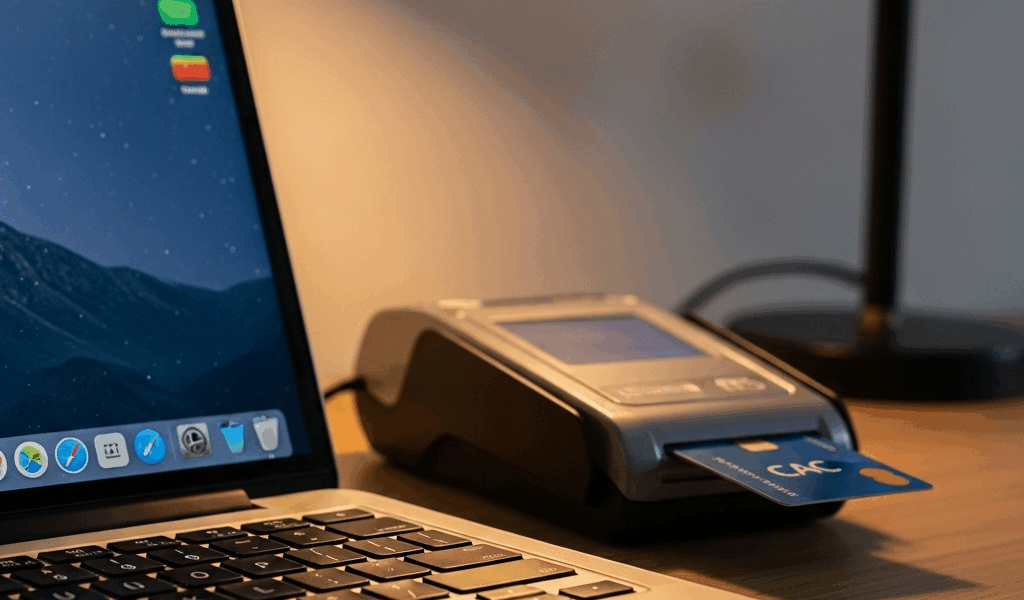
CAC Card Not Working on Mac With Safari — Here’s the Fix
CAC authentication on Mac has gotten complicated with all the conflicting advice flying around. As someone who spent three hours last month watching my military email refuse to authenticate in Safari — while Chrome worked perfectly on the exact same machine — I learned everything there is to know about this particular headache. Today, I will share it all with you.
The worst part? Every guide I found assumed Chrome or Firefox. Safari users got silence. So this one is for us.
Why Safari Blocks CAC Authentication
But what is the Safari CAC problem, exactly? In essence, it’s a certificate trust issue rooted in how Safari handles client authentication differently from every other browser. But it’s much more than that.
Chrome and Firefox maintain their own certificate stores. They support extensions like CAC Enabler that can force certificate prompts to appear. Safari doesn’t have that luxury — it processes client certificates exclusively through macOS Keychain. No workarounds. No extensions. Just the operating system doing what it wants.
Here’s what makes this genuinely maddening: Safari relies entirely on the OS trust chain. If your CAC certificate isn’t marked trusted at the system level, Safari won’t even ask you to use it. The browser just quietly fails. No error. No prompt. Nothing. You hit a blank page or a vague authentication failure and Safari acts like everything is totally fine.
More secure in theory. Absolute nightmare in practice. That’s what makes Safari endearing to us Mac users, apparently.
So, without further ado, let’s dive in.
Check Your Middleware and Keychain First
Probably should have opened with this section, honestly. Before touching anything in Safari, you need to confirm that your CAC middleware is actually installed and talking to your card reader.
The two main options are OpenSC and CACKey. Whichever one your organization deployed needs to be active. Open Keychain Access — Command+Space, type “Keychain Access,” hit Enter. Navigate to the login keychain first. You’re looking for certificates labeled “Department of Defense” or your specific agency name. If middleware is working, your CAC certificate shows up here.
Click on it. Expand the details. Trust status matters enormously. An untrusted certificate displays something like “This certificate was signed by an unknown authority” in red text. Trusted certificates show a small blue checkmark or green confirmation that the chain is valid.
Don’t see your CAC certificate at all? Your middleware isn’t communicating with the card reader. Try restarting the card reader software, unplug the USB reader and plug it back in, or just reinstall the middleware entirely. Safari never even gets a chance to fail if the certificate never reaches the system keychain.
Check the System keychain too — not just login. Some middleware installs root certificates there instead. Same rules apply.
Configure Safari to Prompt for CAC Certificate
Open Safari. Click “Safari” in the menu bar, then “Settings” — or “Preferences” if you’re on an older macOS version. Head to the “Privacy” tab. Look for something related to “Ask before sending a client certificate” or “Prompt for client certificates.” That toggle needs to be on.
If it’s already enabled, the next move is clearing Safari’s TLS session cache. Cached credentials that are expired or corrupted will keep tripping you up. Force Safari to request a fresh certificate on the next authentication attempt.
Open Terminal — Command+Space, type “Terminal” — then paste this and press Enter:
rm ~/Library/Safari/LocalStorage/https_*
Still nothing? Try this instead, which clears the broader SSL session cache:
security logout
Log back in after running that. Close Safari completely — not just the window, actually quit it. Reopen and try authenticating again. The certificate prompt should appear this time. Don’t make my mistake of skipping the full quit and wondering why nothing changed.
Fix Trust Settings for DoD Root Certificates
Safari won’t recognize your CAC certificate as valid unless the DoD root certificates that signed it are trusted on your Mac. I’m apparently the type of person who skipped this step twice before it clicked, and it cost me about 90 minutes total. Don’t do that.
Download the DoD root certificates from the DoD Cyber Exchange at https://cyber.defense.gov. You need the DoD Root Certificate Authority files — look for anything labeled “DoD Root CA” with a .cer or .p7b extension. The exact filename varies depending on when they last updated things.
Double-click the downloaded certificate file. Keychain Access opens automatically. When it asks which keychain to add it to, select “System.” Enter your Mac administrator password when prompted.
Now open Keychain Access manually and find your newly added DoD Root Certificate in the System keychain. Double-click it. Under “When using this certificate,” change the dropdown from “Use System Defaults” to “Always Trust.” You’ll enter your password again. Worth it.
Your organization might use an intermediate CA — check your CAC certificate details in Keychain to see every root CA in your chain, then mark all of them as trusted. Missing even one breaks the whole thing.
Restart Safari after updating trust settings. That part is non-negotiable.
Still Not Working — Try These Last Resorts
Reboot your Mac with the CAC card reader already plugged in. I know. It sounds like 2003 advice. It genuinely fixes macOS driver issues that prevent the system from fully registering the reader, though, so just do it.
Try a different USB port — preferably directly on the Mac rather than through a hub. Hubs cause power delivery problems that make card readers behave unpredictably. A $12 direct connection has solved this for people running $400 hubs.
Running an Apple Silicon Mac — M1, M2, M3 or newer? Confirm your middleware is a universal binary build. Some older CAC middleware runs only under Rosetta emulation and struggles with certificate prompting. Your IT department should have an Apple Silicon-compatible version. If they claim they don’t, escalate that.
Open Console — Applications → Utilities → Console — and search for certificate-related errors while attempting authentication. SSL handshake failures and “untrusted certificate” messages show up clearly and usually point to exactly where things are breaking down.
If Safari still refuses after all of this, our detailed Chrome CAC fix guide covers the browser extension workarounds that Safari simply doesn’t support. Sometimes switching browsers temporarily is the practical call while IT sorts out the deeper Safari issue — and that’s fine.




Stay in the loop
Get the latest apple mac in government updates delivered to your inbox.