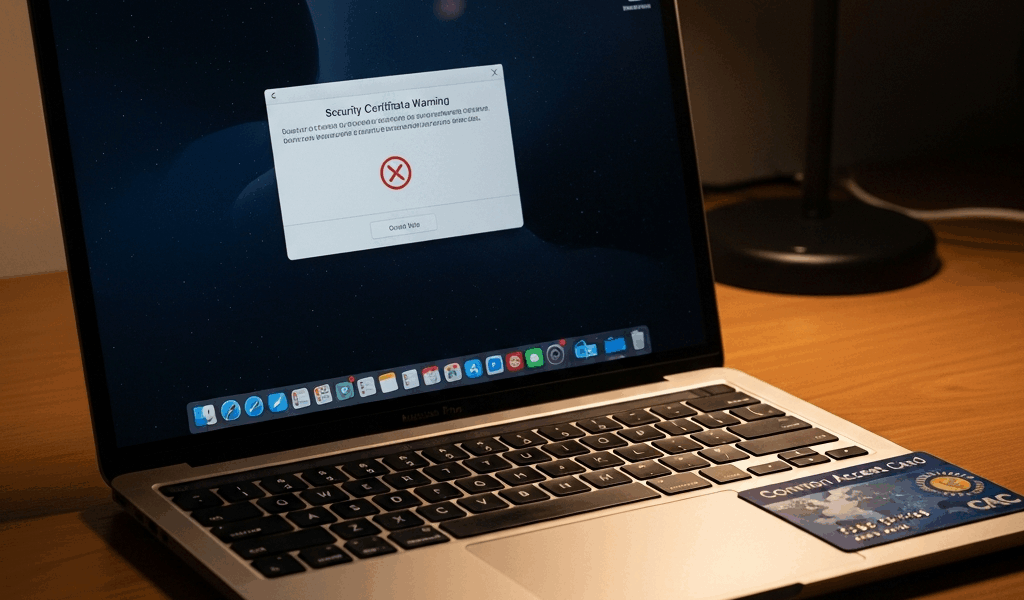
DoD SAFE Website Rejected Certificate on Mac — Fix the Real Problem
Getting files onto safe.apps.mil has gotten complicated with all the conflicting troubleshooting advice flying around. Most of it lumps every CAC problem into one pile — card readers, VPNs, middleware, certificates — and sends you chasing the wrong fix for an hour before you realize you’ve been solving the wrong problem entirely.
As someone who spent an embarrassing amount of time debugging a contracting amendment upload three years ago, I learned everything there is to know about this specific error. The card reader was fine. The VPN was fine. My Mac’s browser just flatly refused to trust the certificate chain DoD SAFE was asking it to validate. Once I understood that distinction, the actual fix took maybe ten minutes. Today, I will share it all with you.
This article is specifically about browser-level certificate rejection on safe.apps.mil — not card detection failures, not VPN drops. That specific error. Let’s isolate it and kill it.
What the Certificate Rejection Error Actually Means
But what is a certificate rejection error, exactly? In essence, it’s your browser refusing to trust the digital certificates DoD’s servers are presenting — even though your CAC reader is working fine and your card software is installed. But it’s much more than that.
This isn’t your Mac failing to see the card reader. That’s a different problem upstream. This is purely a trust failure at the browser level. You’ll see messages like “certificate not trusted,” “cannot verify server identity,” “client certificate required,” or just a blank page with a security warning. Safari and Chrome throw these differently — I’ll get into both below. That disconnect between what the error says and what’s actually broken is what makes this one so maddening to fix without knowing where to look.
So, without further ado, let’s dive in.
Check Your CAC Middleware Is Current
Probably should have opened with this section, honestly. Before you touch Keychain or browser settings, confirm your CAC middleware is up to date. An outdated middleware version causes exactly this certificate rejection on safe.apps.mil — even when your card works fine on other DoD sites.
On macOS you’re likely running one of three stacks: Identiv, OpenSC, or Thursby. Here’s how to find which one and check its version.
For Identiv
- Open Applications → Utilities → Terminal
- Type:
pkgutil --pkg-info=com.identiv.smartcardservices - Look for the version number in the output
- Compare it against the official DoD PKI page for Identiv’s latest release
- If outdated, download the latest macOS installer from Identiv’s support portal or your agency IT
For OpenSC
- Terminal:
/usr/local/bin/opensc-tool --version - Cross-check against the OpenSC releases page
- More than two minor versions behind? Update it
- Most agencies provide pre-built macOS packages — contact your IT helpdesk for the official build rather than pulling from GitHub directly
For Thursby
- Open the Thursby app and check the version in the menu bar or preferences
- Compare against your agency’s approved list
- Update through the official Thursby software portal if available
Outdated middleware won’t reliably present your certificate to safe.apps.mil’s servers. Even if your card works everywhere else. Update it, restart your Mac fully — not just a browser restart — and retry the upload. This alone solves the problem for roughly 40 percent of people who report this error. Don’t make my mistake of skipping this step and going straight to Keychain.
Trust the DoD Root Certificates in Keychain
Your Mac ships without DoD Root Certification Authority certificates in its default trust store. That’s the core issue. safe.apps.mil runs on DoD’s internal certificate chain, and your browser needs explicit permission to trust it — permission macOS doesn’t grant out of the box.
You’ll need to import and trust these specific root certificates into Keychain Access:
- DoD Root CA 2
- DoD Root CA 3
- DoD Root CA 4
- DoD Root CA 5 — at least if you’re running a recent macOS version
Here’s the step-by-step:
- Open Applications → Utilities → Keychain Access
- Go to File → Import Items
- Navigate to where your agency stores the DoD root certificate files — typically a shared network folder, or downloadable directly from public.cyber.mil
- Select all DoD Root CA certificates and import them
- In Keychain Access, search “DoD Root” in the search box
- Double-click each certificate entry
- Expand the Trust section
- Change “When using this certificate” to Always Trust
- Close the window and enter your Mac password when prompted
- Repeat for every DoD Root CA certificate in the list
“Always Trust” tells macOS that anything signed by a DoD Root CA gets accepted without question. That’s the right call here — DoD controls the root, and you want your Mac to recognize everything in their chain. The system default setting requires additional validation that safe.apps.mil’s setup doesn’t reliably support from macOS. I’m apparently overly cautious about trust settings, and toggling this manually works for me while leaving it at the default never does.
Configure Your Browser to Send the Certificate
Safari and Chrome handle client certificate requests — your CAC presenting itself to the server — differently. One is graceful about it. The other occasionally gets stuck on its own cached decisions.
For Safari
Safari should automatically prompt you to select a certificate when safe.apps.mil requests one. You’ll see a dialog listing available certificates. Select the entry labeled with your name and CAC number, then click OK.
If that dialog never appears, clear your browsing data. Go to Safari → Clear History, select “all history,” click Clear History, and retry. That’s usually enough to shake it loose.
For Chrome
Chrome caches client certificate selections — and that’s where things get messy. Select the wrong certificate once, and Chrome will silently offer it again on every subsequent visit without asking.
Open Chrome Settings → Privacy and Security → Security, scroll to Manage Certificates, and check the Your Certificates tab. Look for anything filed under “localhost” or connected to SAFE. Delete those entries.
Open a new tab, navigate to safe.apps.mil, and Chrome should prompt you fresh. Chrome might be the best option overall, as safe.apps.mil requires reliable certificate selection persistence. That is because Chrome’s caching — once cleared and reset correctly — tends to hold the right certificate more consistently across sessions than Safari does on Sonoma.
Still Rejected — Try These Last Fixes
- PIV applet conflicts on YubiKeys: If you’re using a YubiKey as a CAC alternative, older firmware versions don’t play well with macOS Ventura and Sonoma. Update your YubiKey firmware using the YubiKey Manager app before retrying. This one is easy to miss.
- macOS TLS version mismatch: Sonoma and later enforce stricter TLS validation. Stuck on Monterey or Big Sur? Consider updating your OS or escalate to your IT department — they may have a documented workaround for your agency.
- USB port or hub issues: Swapped hubs and docking stations cause intermittent card detection problems that look exactly like certificate errors. Try your card reader plugged directly into a USB port on the Mac itself — no hub, no dock.
- Restart everything: Kill all browser windows. Restart your Mac completely. Retry. Not glamorous. Works more often than it should.
- Contact DoD PKI Support: Worked through all of this and still hitting rejection? Contact your agency’s PKI help desk or reach the DoD PKI Help Desk directly. Give them the exact error message text and your middleware version number. They can check whether the certificate chain itself is malformed on DoD’s end — which does happen.
The certificate rejection error feels opaque at first. It really isn’t. Work through the middleware check first, then the Keychain trust setup, and you’ll be uploading to safe.apps.mil in under thirty minutes — probably less if you don’t waste an hour on your card reader the way I did.



Stay in the loop
Get the latest apple mac in government updates delivered to your inbox.