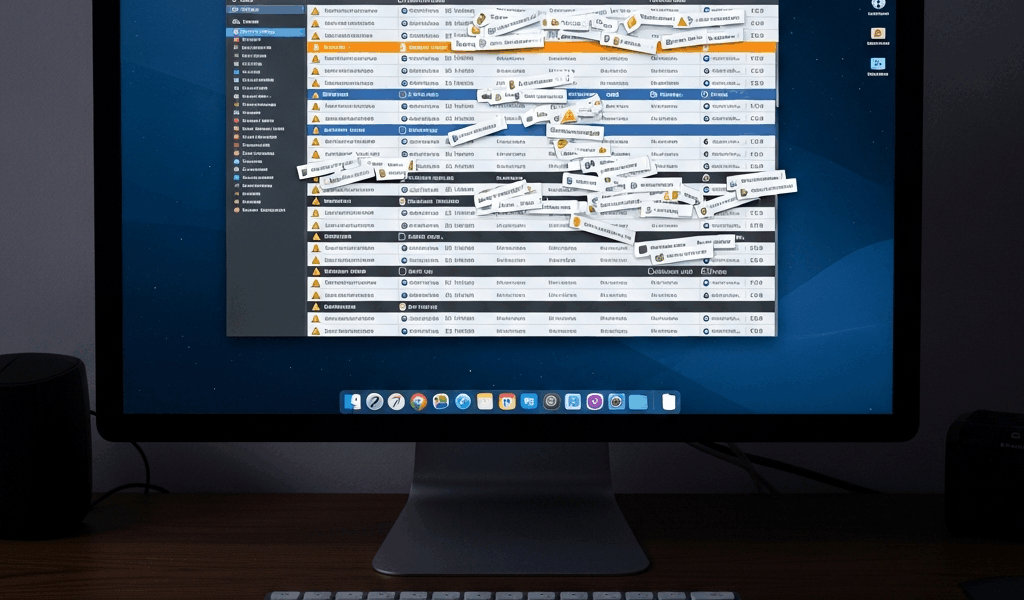
Your Mac’s Keychain Is Full of Dead CAC Certificates — Here’s Why
Federal IT has gotten complicated with all the certificate noise flying around. As someone who spent three years managing a sluggish, cluttered Keychain Access application without understanding why, I learned everything there is to know about expired CAC certificates piling up on macOS. Today, I will share it all with you.
The problem is deceptively simple. Every time your Common Access Card renews — and if you’re federal, that’s every three to five years — the old certificates just stay put. Nobody removes them. Nobody warns you they’re accumulating. They sit in your Keychain like old tax returns stuffed in a filing cabinet, except these ones occasionally break your authentication.
But what is a CAC certificate, exactly? In essence, it’s a digital credential tied to your physical card that proves your identity to government systems. But it’s much more than that — it’s also what your Mac uses to sign emails, authenticate to DoD websites, and connect through VPN. When old ones pile up, your system gets confused about which one to actually use.
My own Keychain had accumulated fourteen expired DoD certificates before I finally dealt with it. Fourteen. That’s not even unusual — colleagues of mine have found twenty-plus sitting there doing nothing useful. After two or three CAC renewals, you stop looking at one obsolete credential and start looking at a graveyard.
The accumulation causes real, annoying problems. Authentication slows down. DoD websites throw random failures. Outlook signs emails with the wrong certificate — the expired one from 2019, not your current one. VPN connections hang at the certificate selection step. None of it catastrophic. All of it maddening. That’s what makes cleaning this up so endearing to us federal Mac users once we finally figure out it’s possible.
Most people are terrified to touch anything in Keychain Access, though. The app looks like it was designed to intimidate. Cryptographic jargon everywhere. Security warnings on every other screen. Deleting anything feels like you’re one misclick away from bricking your entire system. So the expired certificates accumulate, year after year, renewal after renewal. So, without further ado, let’s dive in.
Which Certificates Are Actually Safe to Delete
Probably should have opened with this section, honestly. But the context above matters. Before you start deleting things, you need to understand which certificates to leave completely alone and which ones are actively hurting you.
The Untouchable Ones — System Roots
Your System Roots folder contains the certificate authorities your Mac uses to verify websites and services at the operating system level. Apple put them there. Your IT department may have added a few. Leave them alone — completely, unconditionally, without exception.
You’ll recognize System Roots because they live in a clearly labeled folder called “System Roots.” They’re not mixed in with your personal certificates. If you’re not specifically hunting for something in that folder, don’t touch it.
The Safe Zone — Expired Certificates in Your Login Keychain
Your Login Keychain is where personal certificates live. CAC certificates land here. This is your operating area. A certificate marked “EXPIRED” with a red X next to it, sitting in your Login Keychain — that’s your target.
The red X is your friend here. It means the certificate is no longer valid, not being used for anything, not protecting any active authentication session. It’s just taking up space and creating confusion for every system that tries to figure out which credential to actually use.
Valid certificates worth keeping have your full name on them, a “Valid from” date within the last few years, a “Valid until” date that’s still in the future, and zero error messages when you click on them. No red X. No warning triangles. Clean.
One detail that trips people up: DoD intermediate certificates — entries like “DOD ID CA-59” or “DOD EMAIL CA-60” — live alongside your personal certificates. The ones that haven’t expired are actually useful. Your Mac needs them to verify your personal credentials. Don’t delete those. Delete the expired personal certificates. The ones with your name on them. The ones with the red X. That distinction matters.
Step-by-Step Keychain Cleanup
Open Keychain Access. Find it in Applications > Utilities — it’s the app with the small gold and silver key icon. Alternatively, Spotlight search for “Keychain Access” and it comes up immediately.
On the left sidebar, select “login” under the Keychains section. Not “System.” Not “System Roots.” Login. Then, in the Category section below that, click “Certificates.” Now you’re looking at every certificate in your personal Login Keychain.
Scan the list for red X marks. Click one of them. A detail panel opens on the right — look at the “Valid until” date. Past date, red X, your name on it? That’s a deletion candidate. Right-click it, select “Delete,” confirm in the dialog that appears. Gone. Your system remains completely intact.
Work through them one at a time. Tedious, yes — but if something goes wrong, you’ve only got one deletion to undo instead of five. I deleted my first expired certificate and immediately tested email authentication before moving to the next one. I’m apparently paranoid about certificate cleanup, and that approach works for me while bulk-deleting never would have given me the confidence to keep going. Don’t make my mistake of waiting three years to start — but do take it slowly once you do.
When you’re finished, you should typically have one or two valid personal certificates — ideally just the one from your current CAC — plus several unexpired DoD intermediate and root certificates. Those DoD entries that still have valid dates? Leave them exactly where they are.
Clearing the CAC Token Cache
Beyond Keychain Access, there’s a second location where your Mac stashes old CAC credential data. Not in the Keychain application — in the file system itself, at this exact path: ~/.smartcardservices/
Access it through Finder’s Go menu, selecting “Go to Folder,” then pasting that path. Terminal works too if you’re comfortable there. Inside, you’ll find a TokenCache directory — cached authentication tokens from every CAC card you’ve ever inserted into that Mac.
While you won’t need to touch the folder itself, you will need to empty out its contents. Delete what’s inside the TokenCache directory, leave the folder structure intact. The next time you authenticate with your current CAC, it repopulates automatically with fresh tokens — just from your current card instead of every card going back to whenever you bought that Mac.
Fair warning: clearing this folder means re-authenticating the next time you use your CAC for anything. Websites, email signing, VPN — all of them will ask you to verify fresh. That’s not a disaster. That’s honestly the point. Old cached tokens from expired cards vanish, and fresh ones from your current card take their place.
This step is optional for most people, honestly. Keychain cleanup alone solves roughly ninety percent of the expired certificate problems people run into. The TokenCache cleanup is more of a thorough deep clean — but if you’re already doing the Keychain work, you might as well finish the job.
Verify Everything Still Works
After cleanup, spend fifteen minutes confirming your system still functions. Not paranoia — verification. It saves hours of troubleshooting if something did go sideways.
Test One — DoD Website Authentication
Navigate to any DoD site requiring CAC login. Army Knowledge Online works. National Defense University works. Hit the login button — your browser will prompt you to select a certificate. You should see exactly one option. One. Select it, authenticate, confirm access.
Multiple certificates appearing in that selection list means you missed some expired ones during cleanup. Go back to Keychain Access and finish the job.
Test Two — Email Signing in Outlook
Open Outlook, start a new email, find the Sign button near the encryption options in the toolbar. Attempt to digitally sign. Outlook will ask you to select a signing certificate — again, exactly one option should appear. Select it. If signing completes without errors, you’re good.
First, you should run this test — at least if you use Outlook for government email. It’s the fastest way to confirm your cleanup actually solved the wrong-certificate problem that plagues DoD email users.
Test Three — VPN Authentication
Connect to your CAC-authenticated VPN. The connection should proceed without hanging, without multiple certificate prompts, without the thirty-second pause at the authentication step that used to drive you insane. Clean connection means clean Keychain.
If Something Breaks
Check for recently deleted items in Keychain first — sometimes recent deletions are recoverable directly from there. If not, insert your CAC, open Keychain Access, go to File > Import Items, and reimport your certificates fresh from the card itself. That restores what your current CAC actually holds.
Escalation option: your IT help desk. They handle this constantly — probably more than any other Mac-related ticket they receive. Federal IT help desks are way more helpful about Keychain issues than most people expect. They won’t judge you for accidentally deleting the wrong certificate. They’ve seen it hundreds of times.
After a clean cleanup, your Keychain looks dramatically simpler. Authentication moves faster. Browser certificate prompts show one option instead of eight confusing identical-looking ones. The red X marks stop haunting your certificate list. Small thing, genuinely satisfying — and something you can absolutely handle yourself without calling IT the first time around.




Stay in the loop
Get the latest apple mac in government updates delivered to your inbox.