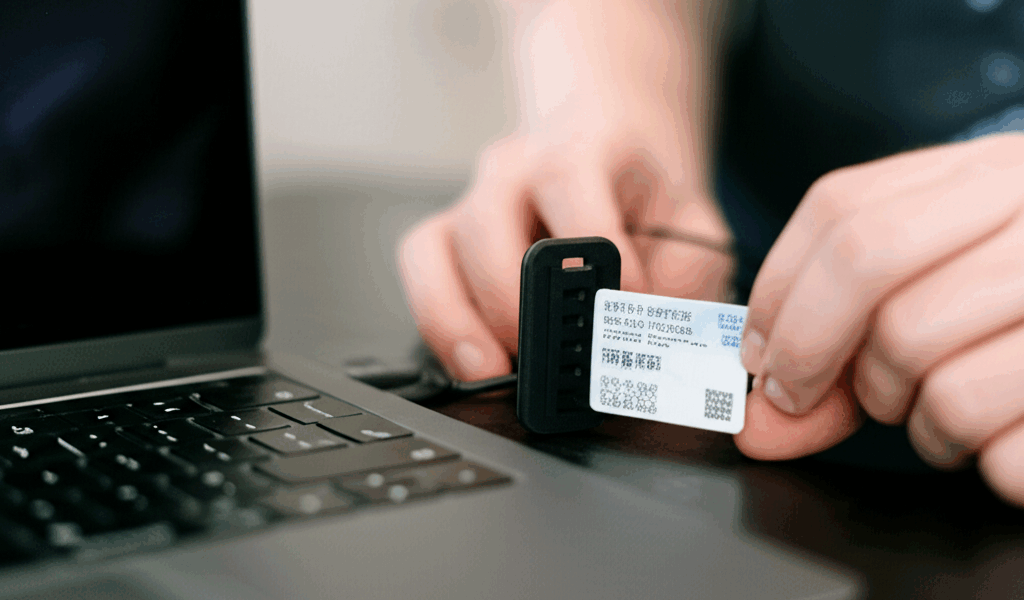
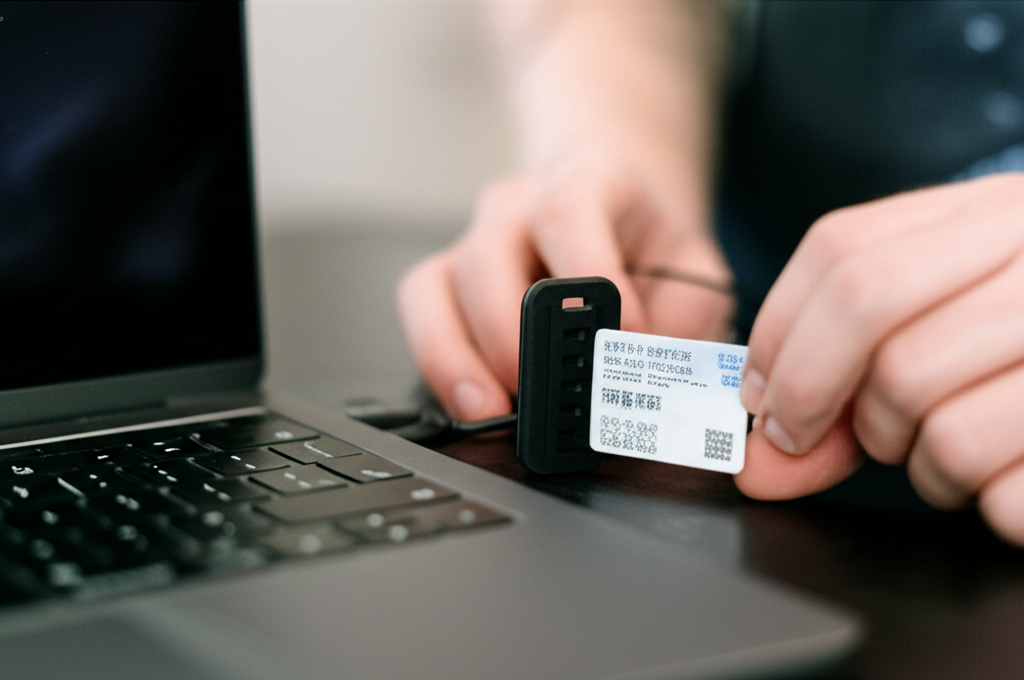
CAC and PIV card errors on macOS have gotten more common as Apple has tightened security controls while the DoD middleware ecosystem has struggled to keep pace. As someone who has debugged this exact problem on both government and personal Macs through multiple OS updates, I learned the reliable fix sequence and what actually causes each error. Today, I will share it all with you.
Understanding the Mac Smart Card Stack
macOS has built-in smart card support through CryptoTokenKit (CTK), introduced in macOS Sierra. CTK allows the OS to communicate with PIV-compliant smart cards including CAC cards without third-party middleware — in theory. In practice, successful CAC access on Mac usually requires proper DoD root certificates in the Keychain, sometimes third-party middleware depending on your configuration, browser-specific setup, and current macOS version compatibility.
Start by understanding what’s installed on your Mac before troubleshooting. Conflicting middleware is a common cause of problems that looks like a card or certificate issue.
Step 1 — Verify the Reader Is Recognized
Open System Information (Apple Menu, About This Mac, System Report) and check under USB for your card reader in the device tree. If it doesn’t appear, try a different USB port or connect directly to the Mac rather than through a hub. USB hubs can cause issues with smart card communication timing.
In Terminal, run: system_profiler SPSmartCardsDataType — this shows whether macOS sees your smart card and can read its certificate information.
Step 2 — Check for Middleware Conflicts
ActivClient for Mac and macOS’s native CTK are not designed to coexist. If you have both active, they may conflict. Check Applications for ActivClient or similar middleware and System Preferences for third-party smart card entries.
To disable native CTK and rely on ActivClient instead: sudo defaults write com.apple.security.smartcard DisabledTokens -array com.apple.CryptoTokenKit.pivtoken. To re-enable native: sudo defaults delete com.apple.security.smartcard DisabledTokens. Probably should have tested both configurations before assuming one is better — they work differently across macOS versions.
Step 3 — Install DoD Root Certificates
Missing root certificates are the most common cause of PIV and CAC failure on Mac. Download the InstallRoot tool from the DoD Cyber Exchange (public.cyber.mil) and run it to install the full DoD certificate chain into your Keychain. For manual installation: open Keychain Access, select the System keychain, import the certificate file, double-click it, expand Trust, and set it to Always Trust.
Repeat for each DoD root CA relevant to your card — DoD Root CA 2 through 6 depending on issuance date.
Step 4 — Try Safari First
Safari uses the Keychain directly and generally handles CAC authentication better than Chrome on Mac. If you’re having browser-specific issues, try Safari first to isolate whether the problem is at the OS level or the browser level. If Safari works and Chrome doesn’t, the fix is Chrome-specific.
For Chrome on Mac: enabling security.osclientcerts.autoload or using Firefox with the DoD PKI configuration often works more reliably than Chrome for government sites.
Step 5 — Certificate Pairing on Sonoma and Later
macOS Sonoma changed smart card certificate pairing behavior. If your card was working before a Sonoma update and stopped after, the update may have reset pairing.
Check pairing status: sc_auth identities
To pair: sc_auth pair -u [username] -h [card hash] where the hash comes from the sc_auth identities output.
When to Escalate
If you’ve worked through these steps and authentication still fails: your organization’s IT help desk has specific configuration instructions for your agency’s setup that may differ from public guidance. The DoD’s CIO-recommended browser and middleware combination varies by agency and macOS version. Hardware failure in the reader or card is possible but rare — rule out software causes first.
Mac CAC support is a moving target as macOS updates change the underlying framework. Check the DoD Cyber Exchange for current Mac guidance specific to your OS version before installing new middleware.




Stay in the loop
Get the latest apple mac in government updates delivered to your inbox.