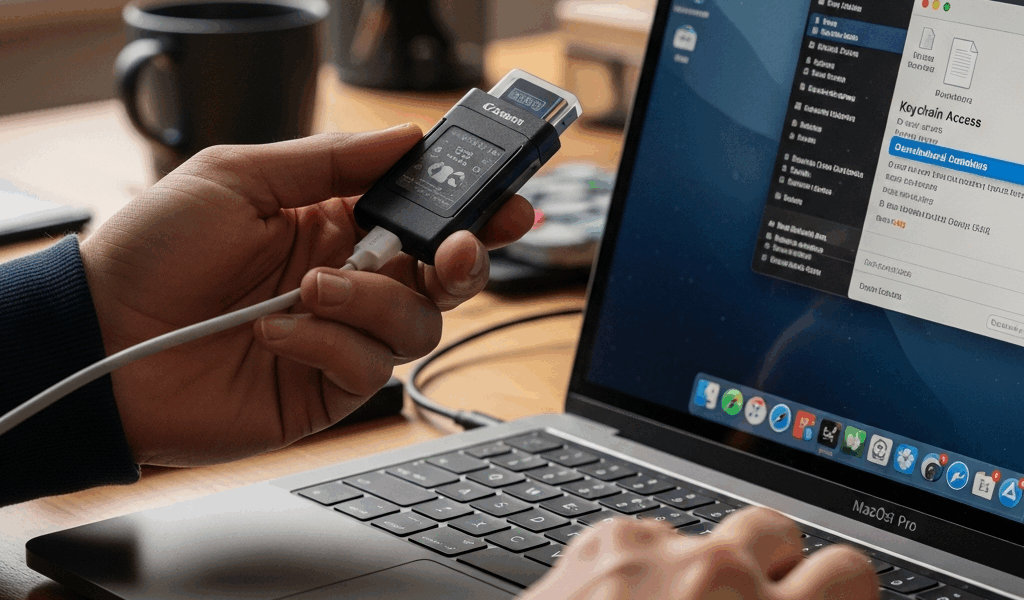
How to Install DoD Certificates on macOS Sequoia (Step-by-Step)
If you’re trying to get DoD certificates installed on a Mac in 2026, you’ve probably already discovered that the guides floating around online were written for Ventura or Monterey and half the steps don’t match what you’re seeing on screen. I manage a small fleet of Macs for a team of contractors who need CAC access daily, and every time Apple ships a major macOS release, at least two of those machines stop trusting DoD sites overnight. Sequoia broke things in a few specific ways I’ll cover here. This guide is current as of Sequoia 15.x and written from what actually worked, not from theory.
Download the Current DoD Root Certificates
The official source is the DISA PKE (Public Key Enablement) portal. The URL that’s been stable for a while is public.cyber.mil/pki-pke/tools-configuration-files/. You’re looking for the section labeled “PKI CA Certificate Bundles.” Don’t grab the first thing you see — there are multiple bundles and grabbing the wrong one is exactly how you waste forty-five minutes importing certificates that don’t cover the sites you actually need.
The bundle you want is labeled something like PKI CA Certificate Bundle (PKCS#7) or the ZIP that contains individual PEM/DER files. As of early 2026, the filename follows a pattern like certificates_pkcs7_DoD.zip or similar. Download size is usually under 5 MB. Save it somewhere you can find it — I use a folder called ~/Documents/CAC_Certs just so it doesn’t disappear into my Downloads folder forever.
Once unzipped, you’ll see a collection of files with extensions like .cer, .p7b, or .pem. macOS handles all of these. The bundle typically includes:
- DoD Root CA 2 through DoD Root CA 6 (and beyond, as new ones are added)
- DoD Intermediate CA certificates covering email, identity, and software signing
- JITC (Joint Interoperability Test Command) certificates in some bundles
Check the README file in the ZIP if there is one. DISA occasionally restructures these bundles. One time I skipped the README and imported an outdated bundle from a previous download sitting in my Downloads folder. That cost me an afternoon. Read the README.
Import Certificates into Keychain
Here’s where Sequoia diverges noticeably from older guides. The Keychain Access app still exists — it hasn’t been replaced yet — but its behavior with certificate trust has gotten stricter.
System Keychain vs Login Keychain — Why It Matters
Import into the wrong keychain and you’ll spend an hour wondering why Safari still throws certificate errors. The System Keychain is what you want. Certificates placed there are trusted machine-wide, for every user account, and for system-level processes. The Login Keychain only covers your current user session, which means other users on the machine won’t benefit, and some background processes won’t see those certificates at all.
Open Keychain Access — you’ll find it in Applications > Utilities, or just Spotlight search it. On the left sidebar, under “Keychains,” you’ll see System listed. Click it. If you’re not running as an admin, macOS will ask for your password repeatedly during this process. That’s normal. Annoying, but normal.
The Import Process Step by Step
- With System selected in the left sidebar, go to File > Import Items.
- Navigate to your unzipped certificate folder.
- Select all the
.cerfiles. You can Command-click to select multiples, or Command-A if the folder contains only certificate files. - Click Open. macOS will prompt for your administrator password. Enter it.
- The certificates will appear in the System keychain list. They’ll show a red X or a white circle icon — that’s expected at this stage. You haven’t set trust yet.
Burned by this once: if you double-click a certificate file from Finder instead of using the File > Import Items menu while System is selected, macOS defaults to importing into the Login keychain. You’ll look at Keychain Access, see the cert is there, and wonder why nothing works. Check which keychain column the certificate appears under before moving on.
For .p7b files (PKCS#7 bundles), the same process applies — File > Import Items handles them. One .p7b file often contains multiple certificates bundled together, so a single import might add a dozen entries at once.
Trust Settings for Each Certificate
Probably should have opened with this section, honestly — or at least warned that this is where most people get stuck. macOS does not automatically trust imported certificates. Not even close. Every root CA you import will sit in Keychain with a red X labeled “Not Trusted” until you manually change it.
Setting Trust for SSL and X.509
For each DoD Root CA certificate in the System keychain, do the following:
- Double-click the certificate to open its detail window.
- Click the Trust disclosure triangle to expand that section.
- Set When using this certificate to Always Trust. This is the top dropdown, labeled “Secure Sockets Layer (SSL).”
- Set X.509 Basic Policy to Always Trust as well.
- Close the window. macOS will ask for your password again. Enter it.
- The icon on the certificate should change to a blue circle with a white plus sign — that’s the trusted indicator.
Why does macOS default to not trusting imported certificates? Apple maintains its own list of trusted root CAs (the macOS Trust Store), and DoD roots are not on it. They’re government-specific certificates used within a closed PKI ecosystem. Apple has no obligation to include them, and they don’t. So every DoD certificate is a manual trust operation. Every single one.
You need to do this for the Root CA certificates at minimum — DoD Root CA 3, 4, 5, 6, and any newer ones in the bundle. For intermediate CAs, the behavior is slightly different: if a root CA is trusted, certificates it signed should chain up correctly. In practice, on Sequoia, I’ve found that explicitly trusting the intermediate CAs as well prevents a class of errors where Safari validates the chain differently than expected. Takes an extra ten minutes but saves headaches.
A Note on the “Use System Defaults” Option
You’ll see an option in the Trust section called “Use System Defaults.” Leave that alone for DoD certs. That option defers trust to Apple’s trust store — which, as just established, doesn’t include DoD roots. Always Trust is what you need here.
Verify Installation
Don’t assume the import worked. Test it directly.
Testing with a DoD Website
Open Safari and navigate to a DoD site that uses DoD-issued certificates. Good test targets include:
- militaryonesource.mil
- myaccess.dmdc.osd.mil
- iam.nga.mil (if you have access)
If the page loads without a certificate warning — no red padlock, no “This connection is not private” screen — the root and intermediate CAs are trusted correctly. If you still see a warning, click the lock icon in the address bar and look at the certificate chain details. Safari will show you exactly which certificate in the chain is failing trust evaluation. That tells you which specific cert you either missed importing or forgot to set to Always Trust.
Checking Keychain Access Directly
Back in Keychain Access, with System keychain selected, use the search bar (top right) to search for “DoD.” All imported DoD certificates should appear. Their icons should show the blue circle with a plus — trusted. If any still show a red X, that’s your problem cert. Go back to the Trust section for that specific certificate and set it again.
You can also filter by “Certificates” using the Category list at the bottom left of Keychain Access. This cleans up the view considerably when you’re scanning a long list.
Troubleshooting After macOS Updates
Frustrated by the third time a macOS update silently broke CAC access on a contractor’s MacBook Pro 14-inch (M3 Pro, for what it’s worth), I started keeping a written checklist specifically for post-update verification. Here’s what I’ve learned.
What Updates Actually Break
macOS point releases — the 15.1, 15.2, 15.3 type updates — sometimes reset trust settings for certificates in the System keychain. Not always. Not predictably. But often enough that the first thing to check after an update breaks DoD site access is whether the trust flags on your DoD root certificates got reset to “Use System Defaults.”
Major version upgrades (like moving from Sonoma 14.x to Sequoia 15.0) are more aggressive. In some cases, they have wiped the imported certificates entirely from the System keychain. This is the scenario where you go through the full import process again from scratch.
The Re-Verification Checklist
- Open Keychain Access, select System keychain, search for “DoD.”
- Confirm all expected root CA certificates are present. Count them against your original bundle if you kept a note (I keep a text file listing them by name and expiration date).
- Check each Root CA’s trust status. Blue plus icon means trusted. Red X means not trusted — double-click and reset to Always Trust.
- Test a DoD website in Safari. Fresh window, not a cached session.
- If Safari passes but another app still fails (Outlook, Chrome, a government web app), check whether that app uses the system keychain or its own certificate store. Chrome, for example, on macOS does use the system keychain — but some enterprise apps bundle their own trust evaluation.
One Edge Case Worth Knowing
On Apple Silicon Macs running Sequoia, there’s an additional wrinkle if your organization uses MDM (Mobile Device Management) profiles. MDM-pushed certificates sometimes conflict with manually imported ones if the same certificate gets installed twice — once via MDM and once manually. The symptom is a certificate appearing twice in Keychain, with different trust states. Delete the manually imported duplicate and let the MDM-managed version be the authoritative one. If you’re not on MDM, this isn’t your problem.
One last thing: certificate expiration. DoD root CAs do get replaced on a multi-year cycle. If you imported certificates in 2023 or 2024 and haven’t refreshed the bundle, some of those certs may be expired or have been superseded. Go back to the DISA PKE portal annually — I do it every January — download the current bundle, compare it against what’s in your System keychain, and add anything new. That fifteen-minute annual refresh has saved me from at least two incidents that would have taken hours to diagnose cold.




Stay in the loop
Get the latest apple mac in government updates delivered to your inbox.