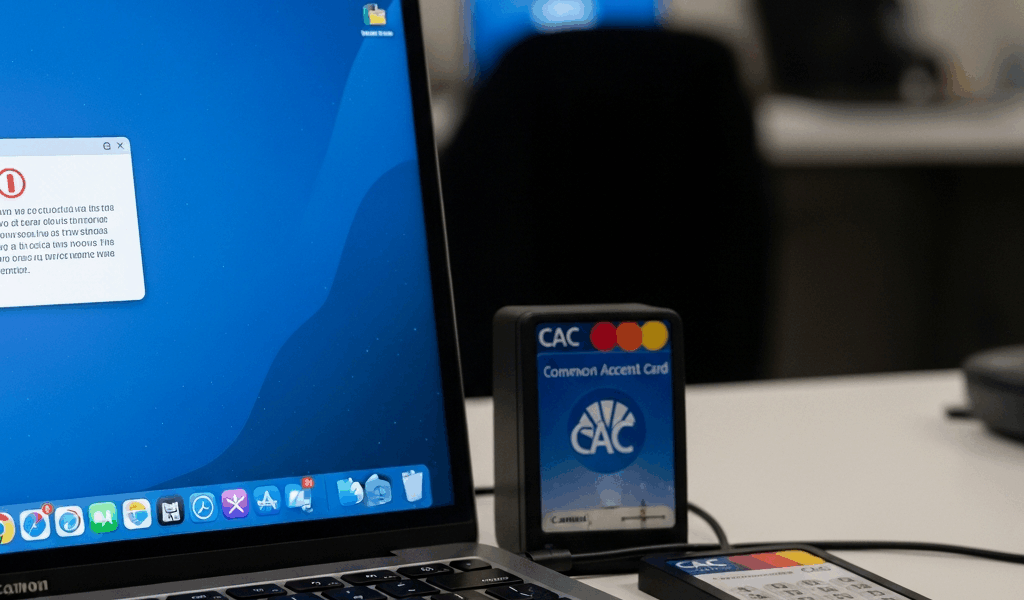
Why OWA Breaks With CAC on Mac
OWA and CAC authentication on Mac has gotten complicated with all the conflicting advice flying around. As someone who spent three years contracting in federal IT, I learned everything there is to know about this specific hellhole of a problem. Today, I will share it all with you.
Here’s what’s actually going on. macOS doesn’t trust Department of Defense root certificates out of the box. Your Mac looks at the certificate chain OWA throws at it and essentially shrugs. Windows machines get these certificates pushed during federal onboarding. Macs don’t. That’s stumbling block number one.
Two: browser certificate pickers behave completely differently on macOS than Windows. Safari uses the system Keychain — which is at least a coherent approach. Chrome and Edge bypass it entirely, running their own certificate handling, which fails silently and gives you nothing useful to troubleshoot. OWA needs client certificate negotiation to confirm your identity through the CAC. That negotiation can collapse before a single error message ever surfaces on your screen.
Three: the PIV certificate selection moment itself. Card goes in the reader, you hit the login screen, the browser is supposed to ask which certificate to use. On Mac, that prompt frequently never appears. Or it appears and shows the wrong certificate entirely. You’re staring at a blank page or a certificate error. Windows users get a clean dialog box. You get nothing. That’s what makes this problem so endearing to us Mac-using federal employees.
Check These Three Things Before Anything Else
Probably should have opened with this section, honestly. Most OWA login failures trace back to one of three configuration gaps. Knowing which one you’re dealing with saves you 45 minutes of aimless clicking through browser settings menus.
- DoD root certificates installed in Keychain Access. Open Keychain Access — it’s under Applications > Utilities > Keychain Access. Search “DoD Root CA.” See nothing? Certificates aren’t installed. See them with a red X? They exist but aren’t trusted, and you need to explicitly mark them as trusted. Without this step, macOS rejects anything DoD-signed and OWA never completes the initial handshake. Full stop.
- CAC middleware running and the card being detected. Your smart card middleware — usually the CoolKey driver or something similar — needs to be active and awake. Go to System Preferences > Security & Privacy > Extensions and confirm the smart card extension is enabled. Insert your CAC, then open a terminal and run
pkcs11-tool --list-slotsif it’s installed. Or just check Activity Monitor for any middleware processes. If the card isn’t detected at this stage, nothing downstream matters. The middleware is dead and everything else is academic. - Browser configuration and client certificate support. This one is browser-specific and shifts between Safari, Chrome, and Edge — sometimes between browser versions, annoyingly. For now, just confirm which browser you’re using and whether it’s configured to actually prompt for client certificates when OWA requests one. We’ll get into each browser below.
Fix OWA CAC Login in Safari Step by Step
Safari handles client certificates better than Chrome on macOS. That’s just the reality. So, without further ado, let’s dive in — Safari is usually the fastest path forward for federal employees who want to stop fighting and start working.
- Enable client certificate prompts. Open Safari Preferences via Safari > Preferences, then click the Advanced tab. Check the box for “Ask when a website tries to access certificate information.” This forces Safari to surface the certificate picker rather than silently rejecting the request and leaving you wondering what happened.
- Verify the smart card extension is active. Head to System Preferences > Security & Privacy > Extensions. Look for “Smart Card” in the list. Not there? You need middleware installed first. There but unchecked? Check it.
- Navigate to your OWA tenant URL and watch for the certificate picker. A dialog should appear asking which certificate to use. Your CAC will typically show up labeled with your name or a certificate ID string. Select it. If the dialog never appears, circle back to step one — the setting didn’t take.
- Confirm the handshake succeeds. After certificate selection, Safari shows a brief loading state. Success means your OWA inbox just loads. No fanfare. It’s almost anticlimactic after all the troubleshooting — the page just appears and you’re in. Failure means you stay on the login page or hit a certificate error.
One detail that tripped me up personally: if your CAC carries multiple certificates — and most do — Safari might offer the signing certificate instead of the authentication certificate. OWA needs the authentication certificate specifically. Select the wrong one and you get bounced back to login. Don’t make my mistake. On the next attempt the picker reappears, so you get another shot, but it’s a frustrating loop if you don’t know why it’s happening.
Fix OWA CAC Login in Chrome or Edge on Mac
Chrome and Edge on macOS don’t use Keychain the way Safari does. They run their own certificate handling. That’s what makes this fix different — and honestly more annoying.
- Check if certificate selection is being suppressed by enterprise policy. If your Mac is MDM-enrolled, your IT department may have disabled client certificate prompts entirely. Ask them whether
chrome.security.clientCertificatesor equivalent Edge policies are locking down cert selection. This is common on government-managed machines — I’ve seen it block Chrome completely on a dozen different agency setups. If the policy is restricting it, Chrome and Edge may simply not be viable for OWA on that device. - If policy allows, verify certificates are visible manually. In Chrome: Settings > Privacy and Security > Manage Certificates. In Edge: Settings > Privacy > Manage Certificates. Confirm your DoD root certificates and CAC certificates actually appear in the list. If they’re missing here, the browser won’t even have anything to offer during the handshake.
- Navigate to OWA and select your certificate when prompted. Chrome and Edge behave roughly like Safari at this stage, but the dialog tends to take longer — sometimes 10 to 15 seconds. If nothing happens, try a hard refresh before assuming it’s broken.
- Watch for the blank page redirect loop. This one is Chrome and Edge specific. The certificate handshake completes — silently — but the browser then redirects to a blank page or loops back to the login screen. This usually means OWA received the certificate but didn’t recognize it as valid. The culprit is typically an expired PIV authentication certificate on the CAC itself, not a browser setting. More on that below.
Still Broken — Escalation Steps and IT Notes
Worked through Safari. Worked through Chrome. Neither one is loading OWA with your CAC. At this point, one of three things is happening — and none of them are fixable by clearing your browser cache, despite what tier-1 support will tell you.
Your PIV authentication certificate has expired. CAC certificates carry expiration dates — typically three years from issuance. Check your card issue date. If you’re past that window, the certificate is dead and there’s no workaround. Contact your agency’s ID card office, usually listed somewhere on the agency intranet. This means a new card. Plan accordingly.
Your OWA tenant is configured to block non-Windows clients. Some agencies restrict OWA access to Windows machines for compliance reasons. That’s a tenant-level OWA configuration — nothing you can touch locally. Your IT department would need to modify the authentication policy directly. File the ticket and wait.
Your MDM policy is blocking certificate access across all browsers. Government-managed Macs frequently carry strict certificate policies baked into the MDM profile. When you file the IT ticket, use this language specifically: “OWA is not loading with CAC authentication on my managed Mac. Client certificate selection is being blocked at the browser level by MDM policy. I need certificate prompts enabled in [Safari/Chrome/Edge] to access OWA. Please review [policy name] with my security team.”
That phrasing signals this is an MDM policy issue — not a generic browser problem. It gets routed past tier-1 support to someone who can actually pull up the policy and change something. Without that specificity, you’ll spend a week in a loop getting told to reinstall Chrome.




Stay in the loop
Get the latest apple mac in government updates delivered to your inbox.