Why Your Browser Choice Actually Matters for CAC Auth
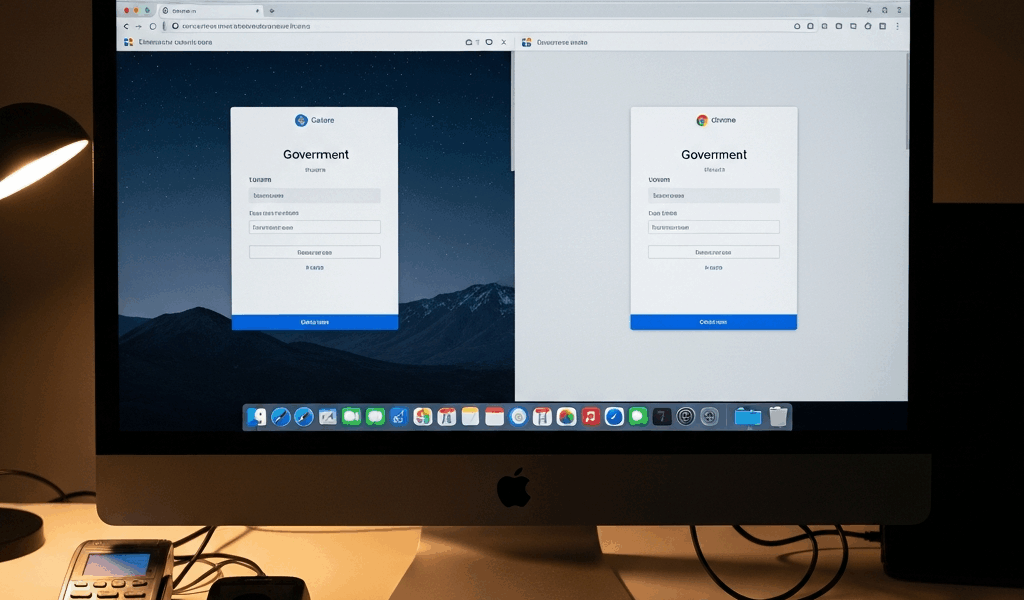
CAC login on Mac has gotten complicated with all the conflicting advice flying around. Blame the middleware. Blame the card reader. Blame the certificates. I spent an embarrassing stretch of time convinced my SCR3500 was the culprit — reinstalled middleware twice, swapped USB ports, the whole routine. Turns out the browser was doing it the entire time. Safari and Chrome handle client certificate requests at fundamentally different levels of macOS, and that gap explains most of the chaos. Same CAC card. Same Mac. Completely different authentication behavior depending on which browser icon you click.
How Safari Handles CAC Certificates on macOS
Safari’s integration with macOS Keychain is about as native as it gets. When a DoD web portal requests a client certificate, Safari goes straight to Keychain Access, finds the PIV authentication certificate loaded from your CAC, and presents it for selection. No third-party certificate manager involved. Install the DoD root certificates — specifically the bundles from the DoD Cyber Exchange, usually the InstallRoot 5.6 package — get your middleware running (Identiv’s SCR3310 driver, HID ActivClient, take your pick), and Safari often just works. That’s what makes it the default recommendation for federal Mac users.
The failure points are specific, though. Safari struggles with sites running older TLS configurations or non-standard cipher suites — and those still exist on legacy DoD portals. You’ll see the spinning wheel, then “Safari Can’t Open the Page” with no useful error code. Another classic symptom: Safari prompts for certificate selection, you pick the right one, enter your PIN, and the page reloads and asks again. That loop almost always points to a session cookie conflict or a site that isn’t honoring the client certificate after the authentication handshake completes.
On macOS Sequoia — 14.x and 15.x both — there’s an additional wrinkle. Apple tightened security behavior around Keychain prompts, and some users have found that their PIV certificate stops appearing in Safari’s selection dialog after an OS update. The fix is usually re-importing the DoD root certificates post-upgrade. Sequoia sometimes doesn’t carry those trust settings cleanly through a major version jump. Do that first, before anything else, if you upgraded and suddenly lost CAC auth in Safari.
Common Safari CAC Failure Symptoms
- Certificate prompt appears, PIN accepted, page reloads and prompts again
- No certificate prompt appears at all despite card being detected
- “Safari Can’t Open the Page” with no certificate-related error message
- PIV certificate missing from the selection dialog after a macOS update
- Site loads but redirects to an error page after authentication handshake
How Chrome Handles CAC Certificates on macOS
Chrome does not hand off to Keychain the way Safari does. It runs its own certificate handling layer — one that sits partially outside the native system. On macOS it does pull from Keychain, technically, but the behavior around client certificate prompts is inconsistent in a way that drives federal users absolutely up the wall. The biggest practical difference: Chrome won’t always prompt you to select a certificate. Sometimes it silently skips the prompt entirely, tries to authenticate without presenting your CAC cert, and the site throws a 403 or an SSL handshake error with no explanation of what happened.
Frustrated by exactly this problem on a shared GFE MacBook Pro 14-inch — M2 chip, running macOS Ventura at the time — I started digging into chrome://settings/certificates. Honestly? That path doesn’t give you much control on macOS compared to Windows. Chrome’s certificate settings page on Mac basically just confirms it’s using the system keychain. The real control lives back in Keychain Access itself, which puts you right where Safari users start anyway. So that was useful.
Where Chrome does give you more levers is enterprise policy flags. Federal agencies running Chrome via managed configuration can push policies like AutoSelectCertificateForUrls, which forces Chrome to automatically select the correct client certificate for specific sites — no user prompt required. If your agency IT shop has configured this, Chrome can actually be more seamless than Safari for specific internal URLs. Without that policy, though, Chrome’s prompting behavior is genuinely less reliable.
Microsoft Edge — the Chromium-based version — behaves almost identically to Chrome here. Same Keychain passthrough, same inconsistent prompt behavior, same enterprise policy options. If Chrome works for your CAC auth, Edge probably will too. Probably. Test it before you trust it.
Common Chrome CAC Failure Symptoms
- No certificate selection prompt — site just returns an error
- ERR_BAD_SSL_CLIENT_AUTH_CERT in the browser window
- Certificate prompt appears but PIV cert isn’t listed
- Authentication succeeds once, then fails on the next tab or reload
- Chrome ignores the CAC entirely when middleware restarts mid-session
Side-by-Side Comparison — Safari vs Chrome for CAC
| Factor | Safari | Chrome |
|---|---|---|
| Keychain Integration | Native, direct system-level access | Indirect — uses Keychain but through its own layer |
| Certificate Prompt Behavior | Consistent prompt when site requests client cert | Inconsistent — often skips prompt silently |
| PIV Middleware Compatibility | High — works with most standard PKCS#11 setups | Moderate — depends on enterprise policy config |
| DoD Portal Success Rate | Higher out of the box after DoD root cert install | Lower without managed policy; higher with it |
| Ease of Setup | Simpler — fewer variables to troubleshoot | More complex — enterprise flags add setup overhead |
| Best For | General DoD web portals, unmanaged Macs | Agency-mandated use, managed GFE with IT policy |
Which Browser Should You Use and When
Probably should have opened with this section, honestly. Use Safari first. That’s the direct answer for most federal Mac users trying to access DoD web portals, TRICARE, myPay, AKO-successor sites, or any standard PKI-authenticated resource. Safari’s native Keychain integration removes an entire layer of variables — and once you’ve installed the DoD root certificates through InstallRoot 5.6, it handles PIV authentication more reliably than Chrome does without additional configuration. That’s what makes it the right default for anyone on an unmanaged or personally-owned Mac.
Use Chrome when your specific agency application requires it, when an internal tool is built around Chrome-specific behavior, or when your GFE is managed and your IT shop has deployed the AutoSelectCertificateForUrls policy. In those managed environments, Chrome can actually be more frictionless — the certificate selection is automated, the prompts disappear, and the whole thing just moves. Without that policy config behind it, though, you’re troubleshooting blind.
Quick Fix Checklist — Safari Not Working
- Download and run InstallRoot 5.6 from the DoD Cyber Exchange — reinstall even if you think you’ve already done it
- Open Keychain Access and confirm the DoD root certificates show as trusted under System Roots
- Remove and reinsert your CAC — confirm middleware detects it before opening Safari
- Clear Safari’s cache and website data, then try the site fresh
- If on macOS Sequoia, re-run InstallRoot after your last OS update specifically
Quick Fix Checklist — Chrome Not Working
- Confirm your PIV cert appears in Keychain Access under the login keychain — Chrome can’t prompt what isn’t there
- Visit
chrome://flagsand search for “TLS” — disable any experimental TLS settings that might interfere - Try launching Chrome with a fresh profile to rule out a corrupted profile interfering with cert prompts
- Ask your agency IT desk whether
AutoSelectCertificateForUrlsis configured for your environment - If Chrome fails on a specific site and Safari doesn’t, use Safari for that site — that’s the answer, full stop
Browser choice isn’t a footnote in CAC troubleshooting on Mac. For a lot of users, it’s the whole story. Don’t make my mistake and spend three hours blaming the hardware when the fix is switching browser icons.


Stay in the loop
Get the latest apple mac in government updates delivered to your inbox.