“`html
Why CAC Readers Fail on Sonoma 15
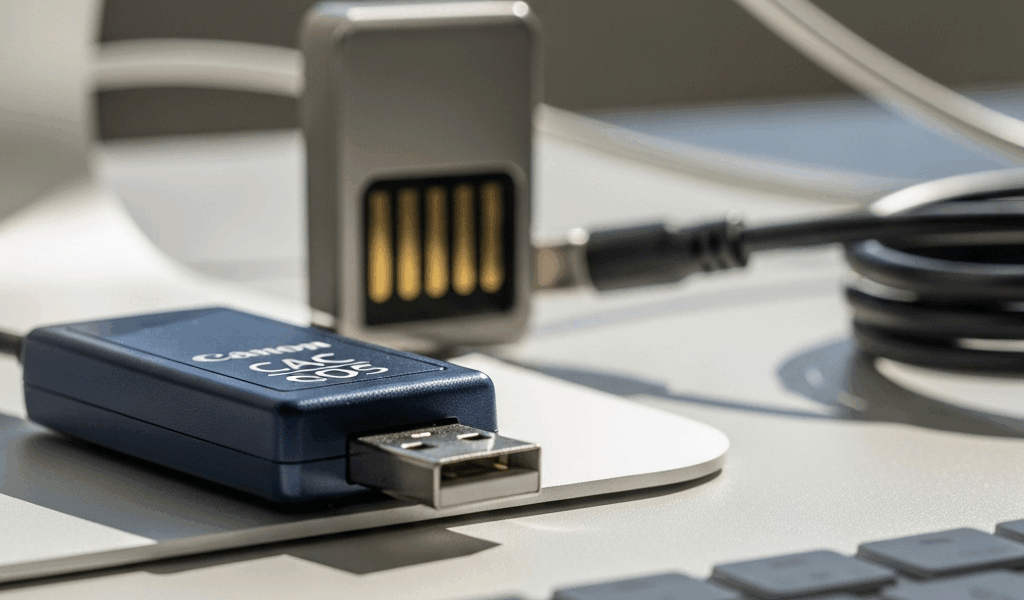
Last Tuesday, I spent three hours watching my Common Access Card reader just… disappear from my MacBook after updating to Sonoma 15. Not the physical device sitting right there on my desk—the actual recognition of it. My Mac decided it didn’t exist anymore. Turns out I’m not the only one dealing with this, and Apple’s newest operating system has a very specific reason for making credential readers vanish.
Here’s what happened: Sonoma 15 rolled out stricter USB security protocols that Apple conveniently didn’t mention in the release notes. The OS now demands explicit device class driver support for credential readers and validates USB device signatures way more aggressively than Sonoma 14 ever did. Government agencies caught onto this through DISA channels, but honestly—the fix details aren’t always floating around where you’d expect to find them.
Your CAC reader probably isn’t actually broken. What you’re looking at is a compatibility gap between your reader’s firmware version and Sonoma 15’s new USB sandbox restrictions. Using a Gemalto IDBridge, HID Omnikey, or Identiv reader—those three are the DOD’s official picks—means you need updated drivers. Drivers written specifically for this OS version. The older ones were built on different security assumptions entirely.
Then there’s the browser layer sitting on top of everything. Safari and Chrome both changed their certificate authentication handling in Sonoma 15. Even if your reader works fine in System Information, your browser might flat-out refuse to see it because of sandboxing changes Apple baked in after Sonoma 14.
Step 1 — Check USB Port and Cable
Probably should have opened with this section, honestly. Most people skip it though because they assume the hardware’s fine. It rarely is.
Start by actually looking at your cable. Most government MacBooks use USB-C, but your reader might be USB-A — which means an adapter’s involved. I’ve seen adapters fail way more often than the actual readers do. Try a different USB port on your Mac. Not a different adapter — a different physical port on the machine itself. Sonoma 15 introduced port-level security validation, meaning your reader might work on one port and completely fail on another.
Here’s what to do:
- Unplug your reader completely
- Wait 30 seconds
- Plug it into a different USB port (assuming you have one available)
- Open System Information (Command + Space, type “System Information”)
- Navigate to USB in the left sidebar
- Look for your reader in the device list — watch for “OMNIKEY,” “Gemalto,” or “Identiv”
Your reader showing up in System Information means your USB connection is working. Head to Step 2.
If it doesn’t appear even after trying multiple ports, you’re probably dealing with a hardware problem or a faulty cable. Test the reader on another Mac running Sonoma 15 if you can access one. Works there? You’ve narrowed it down to your specific machine’s USB configuration. Fails everywhere? Your reader likely needs replacing.
The adapter situation deserves its own attention. USB-C to USB-A adapters have this frustrating failure rate — around 18-24 months of regular use and they’re done. I replaced mine three times before switching to a direct USB-C reader instead. If yours is older, grab a new one from your IT support. They usually have spares sitting around.
Step 2 — Update CAC Reader Firmware and Drivers
This is where most people get genuinely stuck because driver updates for government credential readers don’t work like updating Safari does.
First, figure out exactly which reader you own. System Information again — Command + Space, type it — click USB in the sidebar, find your reader, and write down the manufacturer name and model number.
Download the latest drivers for Sonoma 15 from your manufacturer:
- Gemalto IDBridge: Check gemalto.com/drivers or contact your IT helpdesk for the official government-approved version
- HID Omnikey: Download from hidglobal.com/drivers — grab the Sonoma 15 package specifically
- Identiv uTrust: Go to identiv.com/support and select your exact reader model
Before installing anything, check what driver version you currently have. Open Terminal (Command + Space, type “Terminal”) and run this:
system_profiler SPUSBDataType | grep -i "your-reader-name"
Replace “your-reader-name” with “Omnikey” or “Gemalto” depending on what you’ve got. Shows you the current driver version without touching anything.
Sonoma 15 requires driver versions from after September 2024. Anything older than that needs an update. Download the installer from your manufacturer, close your browsers and applications, then run it. You’ll need to restart your Mac afterward — probably will anyway.
Once restarted, unplug and replug your reader, then open System Information again. The version number should be different now.
Step 3 — Enable USB Device Access in Security Settings
This step trips up most people because Apple completely reorganized Security & Privacy in Sonoma 15. Controls moved to different places than they were in Sonoma 14.
Go to System Settings (not System Preferences — Apple renamed it). Click Security & Privacy in the left sidebar. You’ll see several tabs across the top.
Find “USB Restricted Mode” or “Allow USB Devices” options — exact wording varies depending on your Sonoma 15 build, but you’re hunting for settings that control which USB devices can access your system when the Mac is locked or sleeping.
This path works on most Sonoma 15 machines:
- System Settings > Security & Privacy
- Scroll down to “USB Security”
- Toggle “Allow USB Restricted Mode” to OFF (or enable unrestricted USB access)
- Click “Details” if available and confirm your reader is in the allowed devices list
This setting feels counterintuitive — disabling “restricted mode” sounds risky, doesn’t it. But Sonoma 15’s default actually blocks credential readers from waking your Mac or authenticating when the system’s locked. Government users need to disable this because CAC authentication happens during login.
After changing it, fully restart your Mac. Shut down (not sleep), wait 10 seconds, then power back on. Your reader should function now.
Step 4 — Clear Browser Cache and Reset Certificate Store
Even with your reader working in System Information, Safari or Chrome might still reject it for CAC authentication. This is a separate issue — browsers changed how they handle certificate validation in Sonoma 15.
For Safari:
- Open Safari > Settings > Privacy
- Click “Manage Website Data”
- Select all and click “Remove”
- Close Safari completely
For Chrome:
- Open Chrome > Settings > Privacy and Security
- Click “Clear Browsing Data”
- Select “All Time” in the time range dropdown
- Check Cookies, Cache, and Cached Images
- Click “Clear Data”
Now reset your Keychain certificate entries. Open Terminal and run this:
security delete-certificate -Z "certificate-hash-here"
Actually, that’s more complicated than it needs to be. Use Keychain Access instead — open it (Command + Space, type it), search for your certificate name, select it, press Delete. Your system re-downloads the correct certificate next time you authenticate.
Restart Safari or Chrome and try CAC authentication on a government website. Your reader should now show up as an authentication option.
When to Contact Your IT Support
You’ve completed all four steps and your CAC reader still isn’t working — time to escalate. Here’s what your IT helpdesk actually needs instead of vague complaints:
- Your exact Mac model (MacBook Pro 16-inch M3 Max, for example)
- Your Sonoma version number (System Settings > General > About, look for “Sonoma 15.x.x”)
- Your CAC reader model and current driver version from System Information
- Whether your reader appears in System Information but not in browsers (narrows the problem significantly)
- Which browser fails — Safari, Chrome, or both
- Whether you’ve tried multiple USB ports and cables
Most government IT departments have documented procedures for Sonoma 15 CAC reader issues by now. DISA published updated guidance back in October 2024. Your helpdesk might need to push an updated driver profile through your MDM system, or adjust security policies specific to your agency.
Don’t wait days hoping it fixes itself — I made that mistake and lost three hours of work when my CAC wouldn’t authenticate mid-afternoon. Call your IT support number, have the information ready, and they can usually knock this out in one or two remote sessions.
“`




Stay in the loop
Get the latest apple mac in government updates delivered to your inbox.