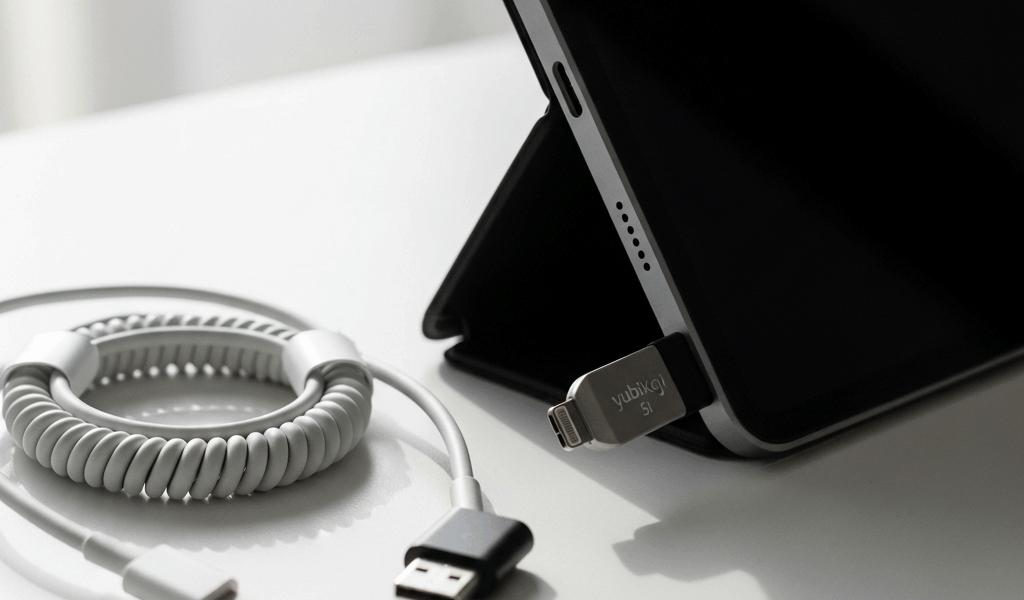
Why Using a CAC on iPad Is More Complicated Than on Mac
CAC authentication on iPad has gotten complicated with all the misinformation flying around. So let me save you forty-five minutes of frustrated Googling right now: “how to use a CAC card on iPad without a reader” is the wrong question entirely. iOS doesn’t support CAC middleware. Not partially. Not with some clever workaround. Not at all.
Your Mac has Keychain, system-level certificate stores, middleware that talks directly to the OS. The DoD built CAC support into macOS years ago — probably around 2011 or 2012 — and it stuck. iPad? Apple locked down iOS so completely that no equivalent system-level certificate access exists for enterprise authentication. This isn’t a gap someone can patch with a $4.99 App Store download. It’s baked into the architecture.
Probably should have opened with this section, honestly. Would’ve saved everyone a lot of false hope.
What this means practically: you need a physical reader plugged into your iPad, or you need virtual desktop software routing authentication through a backend server. That’s it. Two options. No secret third door.
What You Actually Need to Make It Work
While you won’t need a full IT department standing behind you, you will need a handful of specific hardware and software pieces — and they matter more than most guides admit.
For physical readers with documented DoD approval on iPad:
- Gemalto IDBridge CT700 — Works with Lightning iPads via the Apple USB 3 Camera Adapter. Runs $80–120 depending on vendor and procurement channel. This is probably the reader you’ll spot most often on military procurement lists.
- HID Omnikey 5427 CK — The USB-C variant for newer iPads. Needs Apple’s USB-C Camera Adapter, which is another $29. More expensive upfront, but you’re cutting out one extra dongle in the chain.
- SCM SCR3500 A — Older hardware, still functional. Requires the Camera Adapter and noticeably more patience. Driver behavior on iOS gets weird sometimes.
Here’s the detail nobody bothers mentioning in most guides: the Apple Camera Adapter is not optional. A standard USB card reader plugged directly into your iPad does nothing. You need Apple’s specific adapter — $29 for the USB 3 version, also $29 for USB-C — before the reader even has a chance to work. So budget the reader cost plus $29 minimum.
On the software side:
- Safari — The only browser that reliably handles CAC certificate selection on iOS. Chrome and Firefox simply don’t support certificate selection on iPad. This isn’t negotiable.
- Hypori Halo — If your command provisioned it for you. It’s a virtual mobile workspace where CAC authentication happens on a backend server, not on your iPad. Sidesteps the hardware reader problem entirely.
- myPKI — Some DoD offices still use this for certificate management. It’s becoming less common, but worth asking your IT office about.
I’m apparently unlucky with older hardware — the Omnikey 3121 I tested with a Lightning Camera Adapter never stayed connected longer than thirty seconds. The iPad saw it, then immediately stopped seeing it, over and over. Some readers just weren’t built with iOS in mind. Don’t make my mistake. Check the DoD’s approved products list before buying anything secondhand off eBay.
Step-by-Step Setup for iPad With a CAC Reader Dongle
- Plug in the Apple Camera Adapter first. Lightning iPads need the USB 3 Camera Adapter. USB-C iPads — iPad Pro 11-inch from 2018 onward, iPad Air 2022 and later — use the USB-C adapter. Neither comes in the box with your iPad.
- Connect your CAC reader to the Camera Adapter. Watch for an LED on the reader. If nothing lights up, the adapter may not be pushing enough power — try a different surface, check cables, or verify whether your reader needs external power separately.
- Open Safari. Not Chrome. Not Firefox. Safari. This step alone trips up more people than any hardware problem.
- Navigate to a CAC-protected DoD site. DFAS works well as a test. Your unit’s internal portal works too, assuming it’s not blocking mobile agents at the firewall — more on that below.
- Wait for the certificate selection prompt. iOS surfaces a pop-up showing certificate name and issuer. Tap the right one — it usually shows your name alongside “DOD” and an agency identifier string.
- Enter your CAC PIN. A numeric keypad appears on screen. Type your four-digit PIN carefully. Three wrong attempts locks your CAC for 24 hours. Not a fun way to start a workday.
- Trust the certificate when prompted. A second prompt asks whether you trust the site certificate. Tap “Allow” or “Trust.” Usually a one-time ask per site.
- You’re in. Site loads with CAC authentication complete.
What the certificate prompt actually looks like: a white modal, gray text showing the certificate name, issuer listed underneath, two buttons at the bottom. Nothing fancy. Easy to scroll past if you’re moving fast, so slow down at this step.
One thing I learned the hard way — some DoD sites reject connection even after all of this works perfectly. They’re configured server-side to refuse non-Windows user agents or demand Internet Explorer mode. That’s not your reader failing. That’s site-level misconfiguration. Knowing the difference saves a lot of wasted troubleshooting time.
Using Virtual Desktop or Hypori Instead of a Physical Reader
Frustrated by adapter costs and compatibility headaches? There’s another path worth knowing. Don’t authenticate on your iPad at all — authenticate on a virtual desktop running on a server somewhere, then access DoD resources through that remote session.
Hypori Halo is the military’s preferred option for this. It’s a containerized mobile workspace — you launch what looks like a full Windows desktop on your iPad screen. Your CAC reader connects to the host server, not your iPad. Hypori handles all certificate middleware on the backend. You see a Windows desktop, use it normally, and the authentication just works. That’s what makes Hypori endearing to us field users who can’t always carry a laptop.
The catch: Hypori requires command-level provisioning. You cannot buy it yourself on a personal credit card. Your unit purchases licenses and enrolls your device through their IT office. If they use Hypori, great — that’s your answer. If they don’t, you’re back to the reader dongle route.
VMware Horizon is another option, assuming your organization already runs it. Same basic concept — your iPad becomes a thin client, real processing happens on a Windows server, you authenticate once and everything downstream follows. This new idea took off several years later in enterprise IT and eventually evolved into the remote workspace standard that military IT shops know and deploy today.
Both solutions cost money and need existing infrastructure. But if access is already there, they eliminate reader hardware entirely — worth confirming with your IT office before spending $100 on a Gemalto that shows up cracked from an uncareful shipper.
What Still Will Not Work on iPad Even If Setup Is Correct
Some walls don’t move no matter how correctly you’ve done everything else.
Certain DoD portals block mobile user agents at the firewall level. Valid certificate, reader connected, PIN entered correctly — doesn’t matter. Safari identifies itself as running on iOS, and the site rejects it. That’s an intentional configuration decision by whoever runs the portal. You cannot fix it from your end.
Any site requiring Internet Explorer mode or ActiveX controls will never load on Safari. Full stop. ActiveX is Windows-only. IE mode is Windows-only. iOS supports neither, and that’s not changing.
Forms requiring client-side certificate validation — not just login authentication, but validation during form submission — sometimes fail silently on iOS. The page loads. The form looks fine. You hit “Submit” and nothing happens. No error message. No redirect. Just silence. Then you spend twenty minutes assuming you made a mistake somewhere. You probably didn’t. The validation logic was written for Windows and never tested on anything else.
X might be the best option for those edge cases, as iPad authentication requires a compatible site architecture. That is because iOS validation paths simply weren’t part of the original development scope for many legacy DoD portals.
The honest call: if you hit these walls, switch to a Mac or Windows machine for that specific task. iPad handles maybe 80% of DoD portal work without issue. That remaining 20% needs a desktop environment. Know when to pivot instead of grinding against invisible problems for two hours.
Keep the CAC reader for your iPad. Keep a laptop nearby too.



Stay in the loop
Get the latest apple mac in government updates delivered to your inbox.